Kling Video — Technical Guide
Generate AI videos from text or photos — with built-in spoken dialogue, multi-shot storyboards, camera control, and character elements for consistent identity across scenes
Kling Video — Available Models
Model Comparison — Which Model Should I Use?
Each model shares the same Kling Video engine but unlocks different features. Pick the tier that matches your needs.
| Model | 🔊 Native Audio |
🎬 Multi-Shot |
🎙️ Voice Control |
🧩 Elements |
🎥 Camera Control |
🖼️ End Frame |
Duration | Modes |
|---|---|---|---|---|---|---|---|---|
|
Kling v3
Flagship
|
✅ | ✅ | — | — | ✅ | ✅ | 3–15s | Standard / Professional |
|
Kling v3 Omni
Recommended
|
✅ | ✅ | — | ✅ | ✅ | ✅ | 3–15s | Standard / Professional |
|
Video O1
Multimodal
|
— | — | — | ✅ | ✅ | ✅ | 3–10s | Standard / Professional |
|
Kling v2.6
Voice Control
|
✅ | — | ✅ | — | ✅ | ✅ | 5/10s | Standard / Professional |
|
Kling v2.5 Turbo
Fast
|
— | — | — | — | ✅ | ✅ | 5/10s | Standard / Professional |
|
Kling v2.1 Master
Pro Only
|
— | — | — | — | — | — | 5/10s | Master |
|
Kling v2 Master
Pro Only
|
— | — | — | — | — | — | 5/10s | Master |
|
Kling v1.6
Elements
|
— | — | — | — | ✅ | ✅ | 5/10s | Standard / Professional |
|
Kling v1
Legacy
|
— | — | — | — | — | ✅ | 5/10s | Standard / Professional |
💰 Kling Video — Pricing
Kling V2.6 Model
With the VIDEO 2.6 Model, we are introducing the "Native Audio" feature for the first time: a single generation that simultaneously produces video visuals and complete audio, including voiceovers, sound effects, and ambient sounds. This feature achieves seamless coordination in rhythm, emotion, and narrative expression, delivering a true "see what you hear" audio-visual experience.
This upgrade focuses on:
Audio-Visual Coordination: Voice rhythm, ambient sounds, and visual actions are closely aligned, eliminating the disconnect between "visuals and separate audio."
Audio Quality: Supports various sound types such as voice, sound effects, and ambient sounds, with cleaner sound quality and richer layers, closely mimicking real mixing effects.
Semantic Understanding: Strong semantic comprehension of text descriptions, spoken language, and complex storylines in different contexts, ensuring more accurate interpretation of creator intentions and delivering content that better meets needs.
For the creation process, KLING 2.6 provides two efficient creation paths centered around the core need of "fast audio-video content generation from text/images":
Text-to-Audio-Visual: From a sentence to a complete audio-visual video. Input text to generate a video with voiceovers, sound effects, and ambient sounds.
Image-to-Audio-Visual: Bring static images to life with sound and motion. Upload images/text to instantly create audio-visual content, perfect for expanding existing images into full audio-visual experiences.
Image-to-Video
By inputting an image, the "Kling" large model generates a 5-second or 10-second video that animates the image into moving visuals. With the addition of a text description, the "Kling" large model can produce a video sequence that integrates the text's narrative with the image.
It currently supports two modes of generation:
• Standard Mode for quicker video output
- Professional Mode for enhanced visual quality
Moreover, it accommodates three aspect ratios: 16:9, 9:16, and 1:1, catering to a wider range of video creation requirements.
Why Image-to-Video?
Image-to-Video is currently the most utilized feature by users, primarily because it offers greater control over the video creation process. Users can utilize pre-generated images to create dynamic videos, greatly reducing the professional video production costs and entry barriers.
From a creative perspective, "Kling" offers a new platform for creativity, enabling users to direct the motion of the subjects within images through text. Trends such as "reviving old photos," "embracing your younger self," and the whimsically termed "hallucinogenic mushroom video" where mushrooms appear to turn into penguins, showcase "Kling" as a creative tool. It provides infinite possibilities for users to bring their creative visions to life.
The Prompt Formula
For Image-to-Video generation, controlling the motion of the subject within the image is the core aspect. Here's the formula for Kling prompts:
💡 Prompt Format = Subject (Main Focus) + Movement (Motion Description) + Background (Scene Movement)
Subject: The main focus in the video, serving as an important embodiment of the theme. It can be people, animals, plants, objects, and so on.
Movement: Descriptions of the subject's movement status.
Background: Background of the scene.
Key Principles
The most fundamental elements of the formula are the subject and the movement. In contrast to Text-to-Video, which necessitates scene description, Image-to-Video is already provided with a scene. Thus, it only requires the depiction of the subjects in the image and the intended movement for these subjects.
Should there be several subjects with various movements, list them sequentially. "Kling" will then extrapolate from our expressions and its comprehension of the image to produce a video that aligns with the anticipated outcome.
Example: The Mona Lisa
If you want to have Mona Lisa in the painting wear sunglasses, when we simply input "wear sunglasses", the model may have difficulty understanding the instruction, and thus is more likely to generate a video based on its own judgment.
When "Kling" determines that it is a painting, it is more likely to generate a video with panning effects of the painting exhibition, which is also the reason why photos are prone to generating static videos.
💡 Solution: We need to describe "subject + movement" to help the model understand the instruction:
— Single subject: "Mona Lisa puts on sunglasses with her hand"
— Multiple subjects: "Mona Lisa puts on sunglasses with her hand, and a ray of light appears in the background"
The model will respond more easily to these specific instructions.
✦ Some high-quality examples - Video examples below are shared by Kling creators
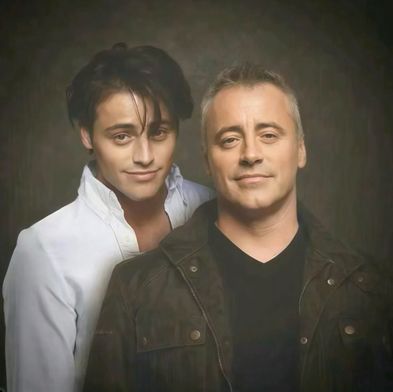
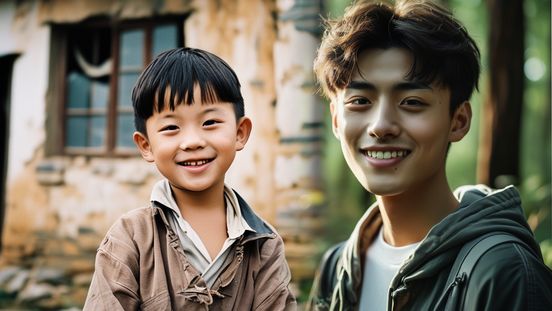
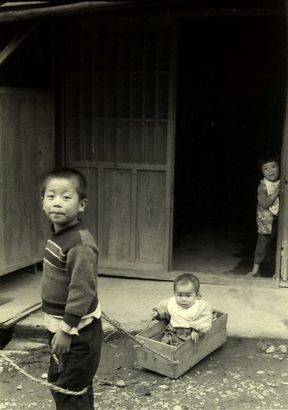
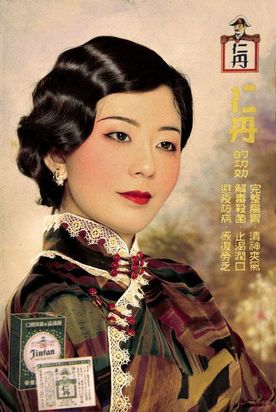

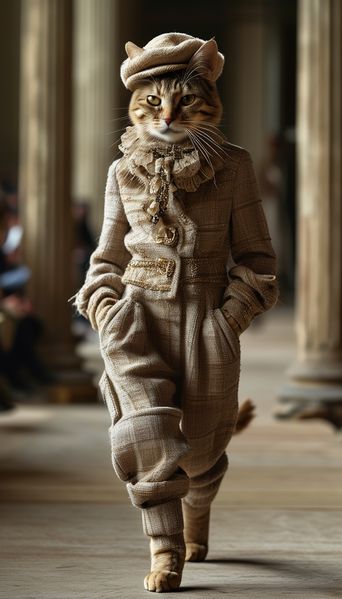

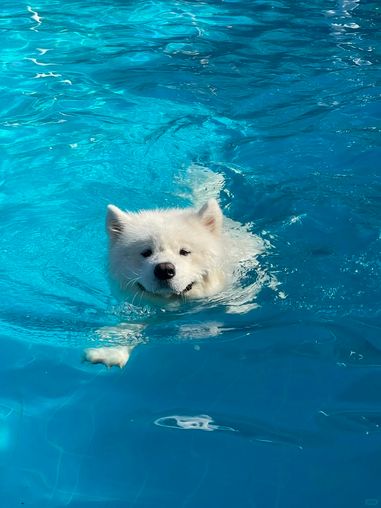
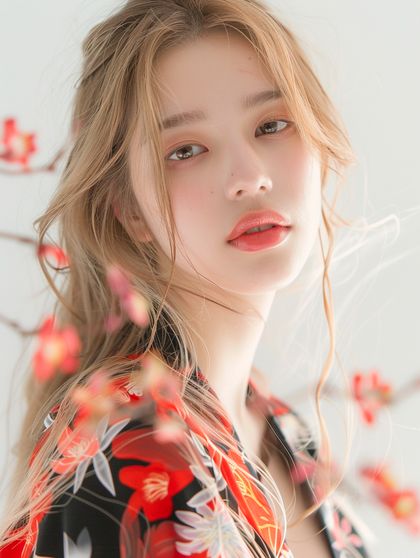
Best Practices for Image-to-Video Prompts
As we mentioned before, the purpose of the formula is to help everyone more effectively describe the video scenes they envision. Please feel free to communicate with Kling! Here are some excellent examples shared by creators, let's check them out~
• Use simple words and sentence structures, avoiding overly complex language
- Movement should comply with the laws of physics, and it's best to describe movements that are likely to occur in the image
- A description that significantly deviates from the image may cause a camera cut or transition
- At the current stage, it is challenging to generate complex physical movements, such as the bouncing of a ball or the trajectory of a high-altitude throw
💡 Tip: Keep your prompts grounded in realistic motion that naturally fits the scene. Simple, physics-compliant movements yield the best results.
Text-to-Video
By inputting a text passage, the Kling large model generates a 5-second or 10-second video that translates the text into visual imagery. It currently supports two modes of generation: "Standard Mode" for quicker video production and "Professional Mode" for superior image quality. "Kling" also supports three aspect ratios: 16:9, 9:16, and 1:1, to more diversely meet everyone's video creation requirements.
We recognize that "Prompt" serves as the key interactive language for the text-to-video model, and it directly dictates the content of the video produced by the model. Consequently, understanding and learning how to use effective Prompts for AI video creation is a goal for all users. As the new incarnation of the AI video model 2.0, "Kling" continues to evolve and improve. It's essential to explore continuously and tap into the full potential of Kling to adeptly utilize it and excel in AI video production. We have crafted a formula for Kling prompts for your reference:
💡 Prompt Format = Subject (Subject Description) + Subject Movement + Scene (Scene Description) + (Camera Language + Lighting + Atmosphere)
— optional
Subject: The subject is the main focus in the video, serving as an important embodiment of the theme. It can be people, animals, plants, objects, and so on.
Subject Description: Descriptions of the subject's appearance details and body posture can be listed using multiple short sentences. For example: Athletic performance, Hairstyle and color, Clothing and accessories, Facial features, Body posture and so on.
Subject Movement: Descriptions of the subject's movement status, including stillness and motion, should be straightforward and suitable for a 5-second video.
Scene: The scene represents the environment in which the subject is situated, encompassing the foreground, background, and other elements.
Scene Description: Scene descriptions for the subject's environment can be concise and focused, using a few short sentences to outline the setting without overwhelming the viewer. It should be suitable for what can be displayed within a 5-second video. Such as Indoor scene, Outdoor setting, Natural scene.
Camera Language: It pertains to employing various applications of the camera lens, along with the transitions and edits between shots, to communicate a narrative or message and to generate particular visual impacts and emotional tones. Techniques include ultra-wide angle shots, bokeh (background blur), close-ups, telephoto shots, low-angle shots, high-angle shots, aerial views, and depth of field, among others. (Note: This should be differentiated from camera motion control.)
Lighting: Light and shadow are the vital elements that imbue photographic works with soul. The application of light and shadow can make photos more profound and emotionally resonant, enabling us to create works with a rich sense of depth and expressive power. Techniques include: Ambient lighting, Morning light, Sunset, Interplay of light and shadow, Tyndall effect, Artificial lighting.
Atmosphere: Describing the atmosphere of the anticipated video footage can involve various elements to set the mood and tone.
Key Principles
The most fundamental components of the aforementioned formula are the subject, motion, and setting, which constitute the most straightforward and essential units for depicting a video scene. To provide a more detailed description of the subject and setting, one should enumerate various descriptive short sentences, maintaining the integrity of the elements intended to appear in the Prompt. "Kling" will then extrapolate from our expressions to produce a video that aligns with our vision.
Example: The Giant Panda
Given "A giant panda is reading a book in a café," we can enrich the details of the subject and scene by adding: "A giant panda, wearing black-rimmed glasses, is reading a book in a café, with the book resting on a table where a steaming cup of coffee sits beside it, next to the café's window." This creates a more specific and manageable image.
If you want to add some cinematic language and lighting ambience, we can also try: "Shot in medium range, with a blurred background and atmospheric lighting, a giant panda, adorned with black-rimmed glasses, is seen reading a book in a café. The book lies on a table, accompanied by a steaming cup of coffee, steaming hot, next to the cafe windows, movie-level color palette." The texture of the video generated in this way will be further enhanced, and it is possible to get results beyond expectations.
Panda exemple
Best Practices for Text-to-Video Prompts
• Use simple words and sentence structures, avoiding overly complex language
- Keep the visual content as simple as possible, aiming for a completion within 5 to 10 seconds
- Using words like "Oriental mood," "China," and "Asia" can more easily generate a Chinese style and depict Chinese people
- Current large video models are not sensitive to numbers, making it difficult to maintain consistency in counts, such as "10 puppies on the beach"
- For a split-screen scene, you can use a prompt like: "4 camera angles, representing spring, summer, autumn, and winter"
- At the current stage, it is challenging to generate complex physical movements, such as the bouncing of a ball or the trajectory of a high-altitude throw
💡 Tip: Keep prompts simple and focused. Avoid precise counting or complex physics. For cultural specificity, use clear regional descriptors.
Start and End Frames
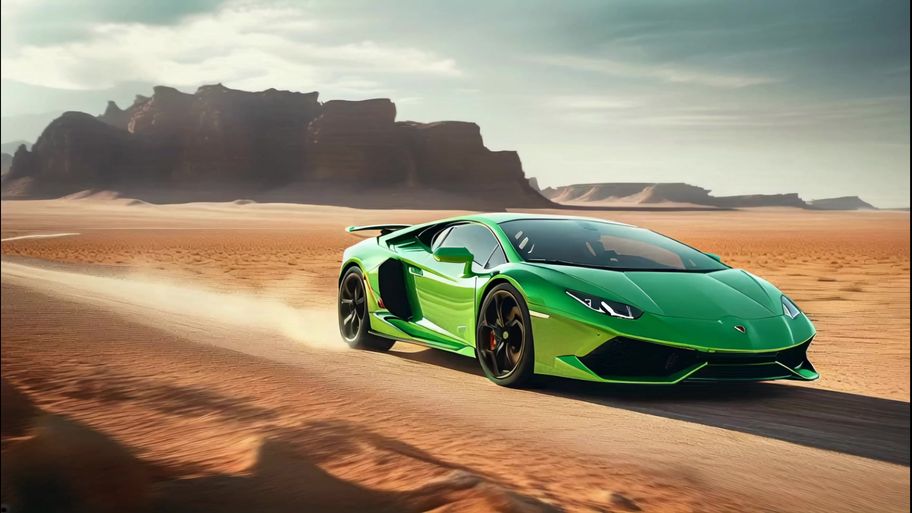
The Start and End Frames function allows you to upload two images, and the model will use these two images as the starting and ending frames to generate a transition video. Experience it by clicking on the "Add End Frame" option located at the top right corner of the Image to Video function.
The first and last frame functions can achieve finer control over videos. At this stage, they are mainly used in video creation for generating videos with control requirements for the first and last frames, which can better achieve the desired dynamic transition of the generated video. However, it should be noted that the content of the first and last frame videos should be as similar as possible, as significant differences may cause a lens switch.
Some tips
• Choose two similar images with the same theme for smoother transitions within 5 seconds. Large differences may trigger a shot switch.
Start and End Frames





Solo Monologue - Product Showcase
Display products and highlight key selling points. Clear speech, natural tone, and a match to the product's atmosphere are key.
Some high-quality examples
Video examples below are shared by Kling creators
Solo Monologue - Lifestyle Vlog
Showcasing easy, natural moments from daily life.
Supported Audio Types
Prompt
Solo Monologue - News Reporting
Emphasizes professionalism, formality, and stable tone.
Solo Monologue - Public Speaking
Shows strong, persuasive delivery.
Narration - Product Explanation
Static visuals + professional narration, ideal for e-commerce videos.
Narration - Event Commentary
Requires dynamic pacing and event atmosphere.
Multi-Character Dialogue - Interview Show
Two people sit down for an interview with natural tone switching.
Multi-Character Dialogue - Scripted Performance (Short Play)
For short stories and emotional dialogue.
Multi-Character Dialogue - Daily Conversation
Casual, Natural, and Conversational
Multi-Character Dialogue - Comedy Skit
Fast-paced, with Strong Contrast
Music Performance - Sing
Music Performance - Rap
Music Performance - Group Chorus
Music Performance - Instrumental Performance
Creative Scene - Visual Effects
Creative Scene - Life Scene Atmosphere
Creative Scene - ASMR
Creative Scene - Creative Ads / Material
How to Write Effective Prompts
When using the VIDEO 2.6 Model, simply write down the scene you want to see + the action that happens + the sound you want to hear, and you'll generate high-quality audio-visual output videos. You can refer to the following formula:
💡 Prompt Format = Scene (Scene Description) + Element (Subject Description) + Movement (Movement Description) + Audio (Dialogue / Singing / Sound Effects / Pure Music) + Other (Style / Emotion / Camera)
💡 Dialogue: "Sentence" + Emotion + Speech Speed + Tone + Character Label
— Single Character: Specify voice attributes (e.g., [Man speaking], "Sentence" + Deep + Fast)
— Multiple Characters: Use clear labels to distinguish (e.g., [Character A, angrily] says, "Sentence" — [Character B, calmly] replies, "Sentence")
Singing: "Lyrics" + Singing Style + Accompaniment Description + Emotion
— Style: Pop, Opera, Country, etc.
— Emotion/Techniques: High-pitched, Vibrato, Gentle singing
Rap: "Sentence (Rhyming)" + Rhythm Style + Emotion
— Rhythm Style: Intense Boom Bap, Trap Style Beat, Fast Flow
— Content: "Sentence" should reflect Rhyme and Meter
Sound Effects: Sound Source (Action/Object) + State + Professional Sound Effects
— Structure: [Object: Wooden Door] suddenly [Action: Slams] + [Sound Effect: Bang]
— Material/State: Glass Breaking, Metal Impact, Screeching Brakes
Ambient Sound: Scene + Sound Elements + Spatial Reverb
— Elements: Rain, Insects, Crowd Murmurs, Traffic
— Spatial Feel: Echo in an Open Hall (Reverb), Small Room Acoustics
Pure Music: Instrument Type + Music Genre + Emotion
— Structure: Piano Performance + Jazz + Melancholy
— Genres: Classical, Rock, Electronic
💡 Tip: It is recommended to use quotation marks " " to clarify sound content when writing prompts.
Key Tutorial — Multicharacter Dialogue Prompt Examples and Guidelines
| Guidelines | Core Principles | Prompt Guidelines and Examples | Incorrect Example (Prone to Model Failure) |
|---|---|---|---|
| P1. Structured Naming | Character labels must be unique and consistent. | [Character A: Black-suited Agent] and [Character B: Female Assistant]. ❌ Avoid using pronouns or synonyms. | [Agent] says… Then, he says… |
| P2. Visual Anchoring | Bind the dialogue to the character's unique actions. | First describe the action, then follow with the dialogue: The black-suited agent slams his hand on the table. [Black-suited Agent, angrily shouting]: "Where is the truth?" | [Black-suited Agent]: "Where is the truth?" (The model won't know who slammed the table) |
| P3. Audio Details | Assign unique tone and emotion labels to each character. | [Black-suited Agent, raspy, deep voice]: "Don't move." [Female Assistant, clear, fearful voice]: "I'm scared." | [Man] says… [Woman] says… (The voice characteristics are too vague and can confuse the model) |
| P4. Temporal Control | Use clear linking words to control the sequence and rhythm of dialogue. | …. [Black-suited Agent]: "Why?" Immediately, [Female Assistant]: "Because it's time." ⚠️ (Optional strong constraint: Insert "this is when the speaker switches" between the two.) | [Black-suited Agent]: "Why?" [Female Assistant]: "Because it's time." (The model may generate a continuous speech from one character) |
Common Audio Trigger Words
| Audio Type | Category | Trigger Words | Examples |
|---|---|---|---|
| Speech | Core Speech | Speaking / Talking | A woman is sitting at a desk, calmly speaking into a microphone. |
| Asking / Querying | A curious boy in the garden asking his father a question. | ||
| Telling / Narrating | An old man sitting by the fireplace, slowly telling a story. | ||
| Explaining | A tour guide pointing at a map, clearly explaining the route. | ||
| Volume / Clarity | Whispering | Two friends leaning in close in a crowded room, whispering a secret. | |
| Softly Speaking | A student in the quiet library is softly speaking on the phone. | ||
| Clearly Speaking / Crisp Voice | A radio announcer with a clear voice is speaking the news. | ||
| Emotion / Tone | Excitedly Speaking | The award winner is holding a trophy, excitedly speaking their acceptance speech. | |
| Complaining | A customer at the counter complaining about poor service. | ||
| Sighing | A tired worker sitting by a window, letting out a heavy sighing sound. | ||
| Gently Speaking | A mother is rocking a baby, gently speaking a lullaby. | ||
| Vocal Quality | Hoarse Voice | A patient waking up, requesting help with a hoarse voice. | |
| Deep Voice | A middle-aged man telling a scary story in a deep voice. | ||
| Pace / Rhythm | Fast Talking / Rapid Speech | A fast-talking salesperson rapidly describing the product features. | |
| Slow Talking | An old professor slow talking while carefully elaborating on a complex theory. | ||
| Performance | Reciting / Reading Aloud | A poet on a stage, reciting a dramatic poem. | |
| Monologue | An actor standing alone on stage, performing a sad monologue. | ||
| Speech (cont.) | Performance (cont.) | Narration / Voiceover | A film scene cuts to a background sound of a deep narration. |
| Dialogue Interaction | Answering / Responding | The interviewee is answering the question immediately. | |
| Arguing / Quarrelling | A couple in the kitchen, arguing loudly. | ||
| Shouting / Yelling | A father standing at the door is shouting / yelling at his children playing outside. | ||
| Discussing | A group of students gathered around a table, discussing a difficult problem. | ||
| Vocal Action | Crying / Sobbing | A little girl sitting on the ground crying / sobbing after falling down. | |
| Speech (cont.) | Vocal Action (cont.) | Screaming | A woman seeing a mouse, letting out a sharp screaming sound. |
| Laughing / Chuckling | Three people sharing a joke and laughing / chuckling loudly. | ||
| Singing | Core Form | A Capella | A singer on an empty stage performs the first line a capella. |
| Humming | A chef happily humming a tune while cooking in the kitchen. | ||
| Loud Singing | A rock musician singing loudly from the mountaintop. | ||
| Technique / Style | Bel Canto / Opera | A soprano in a gown performing a bel canto / opera piece. | |
| Pop Vocals | A young artist in a studio, recording a new track with pop vocals. | ||
| Vibrato | A singer adding a beautiful vibrato to the high note. | ||
| Falsetto | A male vocalist using falsetto to hit a very high note. | ||
| Harmony / Layered Vocals | A quartet performing a section with perfect harmony. | ||
| Rap Terminology | Rapping / Hip-Hop | A street performer rapping / hip-hop under neon lights. | |
| Flow / Rhyme | A rapper performing a verse with a smooth flow and tight rhyme. | ||
| Singing (cont.) | Rap Terminology (cont.) | Fast Rap / Rapid Delivery | A section of the song is a high-speed, machine-gun like fast rap / rapid delivery. |
| Strong Rhythm / Heavy Beat | A Hip-Hop track with a strong rhythm / heavy beat. | ||
| Sound Effects — SFX | Daily Actions | Tapping / Knocking | A carpenter is tapping / knocking a nail with a hammer. |
| Footsteps | Slow and heavy footsteps walking in an empty hallway. | ||
| Chewing / Munching | A person chewing / munching on crunchy chips. | ||
| Material Impact | Glass Shattering | A rock hitting a window, followed by the sound of glass shattering. | |
| Metal Clanging | Two large iron blocks metal clanging in a factory. | ||
| Friction / Rubbing | Friction sound of two pieces of rough fabric rubbing together. | ||
| Natural Elements | Thunder | A flash of lightning, followed by a low thunder rumble. | |
| Fire Crackling | A campfire fire crackling and burning brightly. | ||
| Bubbling / Gurgling | Hot soup on the stove, bubbling / gurgling as it heats up. | ||
| Mechanical Noise | Alarm / Siren | A police car driving by at night, its alarm / siren wailing. | |
| Braking | A car performing an emergency stop, with a screeching braking sound. | ||
| Gears Whirring | The internal workings of an old clock, with subtle gears whirring sound. | ||
| Musical Instruments | Instruments | Piano Music | A pianist playing classical piano music in a concert hall. |
| Guitar Plucking | A street artist gently plucking a guitar string. | ||
| Ambient Soundscapes | Urban | Traffic Noise / Car Flow | Continuous traffic noise / car flow at a busy intersection. |
| Crowd Murmur | The background sound of crowd murmur in a museum. | ||
| Subway Noise | Subway noise as a train arrives and departs from the station. | ||
| Construction Noise | Distant, persistent construction noise in the city during the day. | ||
| Nature | Ocean Waves | The soothing sound of ocean waves hitting the beach in the morning. | |
| Bird Chirping | Various bird chirping sounds in a morning forest. | ||
| Wind Sound (Nature) | Wind sound blowing across an open field. | ||
| Rainforest | A hot and humid rainforest, filled with unique bird calls and dripping water. | ||
| Indoor Space | Library Silence | The deep library silence punctuated by the occasional book drop. | |
| Café Background Music | A casual café background music with quiet chatter. | ||
| Air Conditioner Hum | The steady, low air conditioner hum in a quiet office. | ||
| Fireplace Burning | The warm, comforting sound of a fireplace burning in a winter cabin. |
Kling VIDEO 2.6: Voice Control for Image to Audio & Video
Have you ever struggled with inconsistent voices or a lack of personalisation when creating content across multiple videos or characters? With Kling VIDEO 2.6, we're introducing the all-new Voice Control feature. Simply select a target voice, and the model will accurately replicate its vocal characteristics to perform your specified content. The workflow is effortless — just provide visual input + voice prompt + target voice, and generate high-quality audio-visual content in seconds.
With Voice Control, you can now achieve:
Stable, High-Fidelity Voice Output: The voice remains consistent throughout the entire video, accurately preserving the target timbre. Ideal for long-term voice consistency across IP characters, brand personas, and recurring roles.
Flexible Style Adaptation: A single voice can be seamlessly applied to multiple scenarios — such as narration, conversation, or speeches — automatically adapting tone, rhythm, and delivery style to match the context.
Natural Cross-Language Performance: No additional configuration required. Voices trained in one language can naturally perform dialogue in another (e.g., Chinese ↔ English), with smooth pronunciation and expressive consistency. Currently supports bidirectional Chinese–English adaptation.
Prompt-Based Voice Binding: With simple prompts like [Character@VoiceName], the model automatically binds voices to specific characters — making multi-character dialogue with distinct voices effortless.
With Voice Control, you can now achieve
Voice Control Prompt Guide
Prompt = Scene (scene description) + [Element (element description) @Voice Name] + Motion (motion description) + Audio (dialogue / singing / sound effects / music) + Others (style / emotion / camera)
Recommended Prompt Format:
| Type | Prompt Format | Prompt Example |
|---|---|---|
| Single person speaking/singing | [Role Name] @Voice: "Dialogue." | Police interrogation scene. In a tense police interrogation, [Detective Li @Mr. Wang's voice] stands and demands, "Where's the evidence?" [Suspect Zhang @Xiaohong's voice] lowers his head, trembling slightly, and replies, "I don't know anything." The overall tone is serious and intense, with close-up shots focusing on their exchange. |
| Multi-character conversation/singing Recommended for two-person dialogues; performance may degrade in scenes with three or more speakers. |
[Role A] @Voice A: "Line A." [Role B] @Voice B: "Line B." |
Family farewell scene. In an emotional family farewell, [Father @My Own Voice] lowers his head slightly and says, "The train is about to depart." [Daughter @My Best Friend's Voice] wipes away tears and responds, "Dad, please don't go." The scene carries a sorrowful tone, captured in a medium shot that frames the moment of separation. |
Voice Binding Rules:
Specified Voice Binding: To assign a specific voice to a specific character, add @VoiceName immediately after the character name in the prompt, using the format: Element@VoiceName
— Example: [Livestream Host] @Sweet Female Voice: "This top is a trending must-have!"
Multiple Voice Usage: @VoiceName are independent for each character and will not override one another. Recommended for two-character dialogue scenarios; performance may degrade in scenes with three or more characters.
— Example: [Teacher] @Intellectual Female Voice: "Turn to page 20." [Student] @Teen Voice: "Okay, teacher."
Current Limitations: Voice creation and usage currently support Chinese and English audio/video content only. Voice consistency may be weaker in singing scenarios.
Not Recommended Prompt Formats:
Please avoid the following formats — the model may fail to correctly recognise voice bindings, resulting in incorrect or inconsistent voice application.
| Error Type | Prompt Format | Example |
|---|---|---|
| Missing character entity (using voice as the element) |
@Voice: "Dialogue" | Weather forecast scene. [@Female Narrator Voice] calmly says: "Welcome to today's weather forecast." |
| Multiple characters bound to the same voice | [Character A] @Voice1. [Character B] @Voice1. |
Security booth scene. [Guard A@My College Friend's Voice] reports in a low tone: "The gate is locked." [Guard B@My College Friend's Voice] nods: "All clear." Calm, serious tone; close-up shot capturing the dialogue. |
| Incorrect voice tag placement | [A]: "Line A." [B]: "Line B." @Voice [A]: "Line A." [B]: "Line B." @Voice bound to [B] @Voice. [Character]: "Dialogue" |
Home conversation scene. [Man]: "Where did you go?" (Speaker switches) [Woman]: "I went out for a walk." @My Own Voice Security booth duty scene: [Guard1]: "Yes." [Guard2]: "Copy that." @Voice bound to [Guard1] Street rap scene. @Rapper A's voice. [Young Man]: "The streets never sleep, the beat never fades." Cool, urban style with street traffic ambience and light drum beats. |
| Voice tag embedded inside dialogue text | [Character]: "Dialogue @Voice" [A]: "Line 1 @Voice." Then the speaker switch to [B]: "Line 2." |
[Protagonist]: "I've decided @My Voice to leave this place." Firm and restrained tone, close-up shot, with soft breathing ambience in the background. Family farewell scene. [Father]: "Are you really leaving, @My Own Voice?" (Speaker switches) [Daughter]: "Yes, this is my decision." Emotional farewell atmosphere, medium shot, with low indoor ambient sound. |
| Voice bound to visual actions or non-human audio | @Voice [Visual Action], [Character]: "Dialogue" [Non-human object] @Voice, [Character]: "Dialogue" |
Indoor standoff scene: [@Zhang San's voice] slowly walks into the room. [Man]: "Who are you?" Side-angle shot, with faint footsteps in the background. Police chase scene: Sound effect: [police siren @my voice] wailing. [Officer]: "We're almost there." Overall tense, fast-paced tone, handheld tracking shot, with tire screeching layered into the background audio. |
| Invalid binding (silent character or attribute conflict) |
[A]: "Line A." (Bind to [B]) (B does not speak) [Character with conflicting attributes] @Voice Attribute: "Line" |
Clothing store scene. [Main character]: "This outfit looks great." [A silent clerk] looks at him. [@My colleague's voice] is bound to the silent clerk. Indoor interrogation scene. [A tall man @a sharp, high-pitched female child voice]: "You've caught me." Overall style is suspenseful with strong contrast, using a close-up shot. |
FAQ
Q: What languages does the current model support for voice output?
The current model only supports voice output in Chinese and English. If you input other languages, we will automatically translate them into English and generate the corresponding audio, which won't affect the overall experience. We are also rapidly expanding support for additional languages, so stay tuned!
Q: Can I generate audio only, without video?
Yes! You can go to the platform's [Sound Effect Generation] module, where you can choose either Text-to-Sound Effects or Video-to-Sound Effects:
— Input text to generate standalone audio.
— Upload a video to extract sound effects.
— This allows you to create pure audio content without needing to generate a video.
Q: How can I improve generation results?
To achieve better generation results, we recommend optimising in the following ways:
Optimise your prompt: Keep the description clear and specific, detailing the scene, sound effect type, style, etc. Avoid overwhelming the prompt with too many complex instructions; it's best to describe each element separately.
Enhance image-text alignment: If you're using reference images, ensure the image content matches the text description. For example, if describing "outdoor camping," avoid using indoor photos as reference images to reduce conflicting information.
Set parameters accurately: Adjust the video duration, resolution, and other settings according to your specific needs. Avoid using default settings if they don't meet your expectations.
Simplify the creation scene: Focus on one core theme in each creation to avoid stacking too many elements (e.g., multiple ambient sounds + complex speech), which helps the model generate more stable and ideal content.
Kling AI Video O1
Kling AI Video O1 — the world's first unified multimodal video model — is a brand-new creative engine for creators to unlock endless creative possibilities.
Kling O1, based on the Multi-modal Visual Language (MVL) concept, uses natural language to combine videos, images, elements, and other multimodal descriptions to precisely understand your intentions, making the creative process more intuitive and efficient.
1. Input Anything: World's First Unified Multimodal Video Model
The KLING O1 Video Model marks an industry first by integrating diverse video tasks into a single unified architecture.
Capabilities include Reference-based Generation, Text-to-Video, Keyframe Interpolation (Start/End Frame), Video Inpainting, Transformation, Stylization, and Video Extension. This integration eliminates the need to jump between multiple models or tools, allowing users to execute an end-to-end creative pipeline—from ideation to modification—in one place.
2. Understand Everything: Multimodal Input, All-in-one Creation & Modification
With the model's deep semantic understanding, everything — including images, videos, elements, texts, etc — could be included in your input to Kling O1. The model goes beyond the limitations of modality, integrating and understanding different perspectives of an image, video, or character you upload, to return outputs with precision.
Kling Video O1 - Images Reference + Elements
Preview

Kling Video O1 - Images Reference + Elements
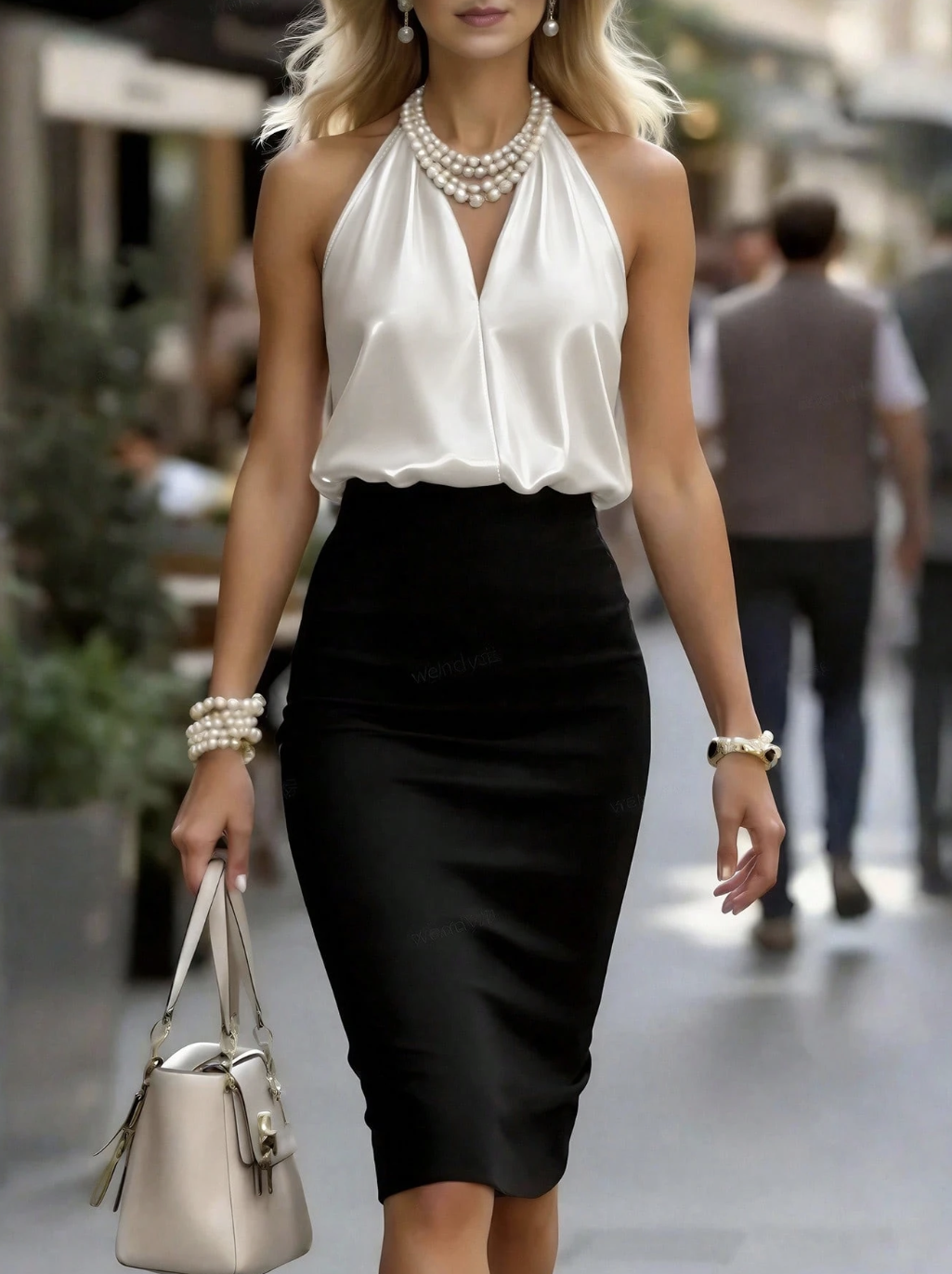
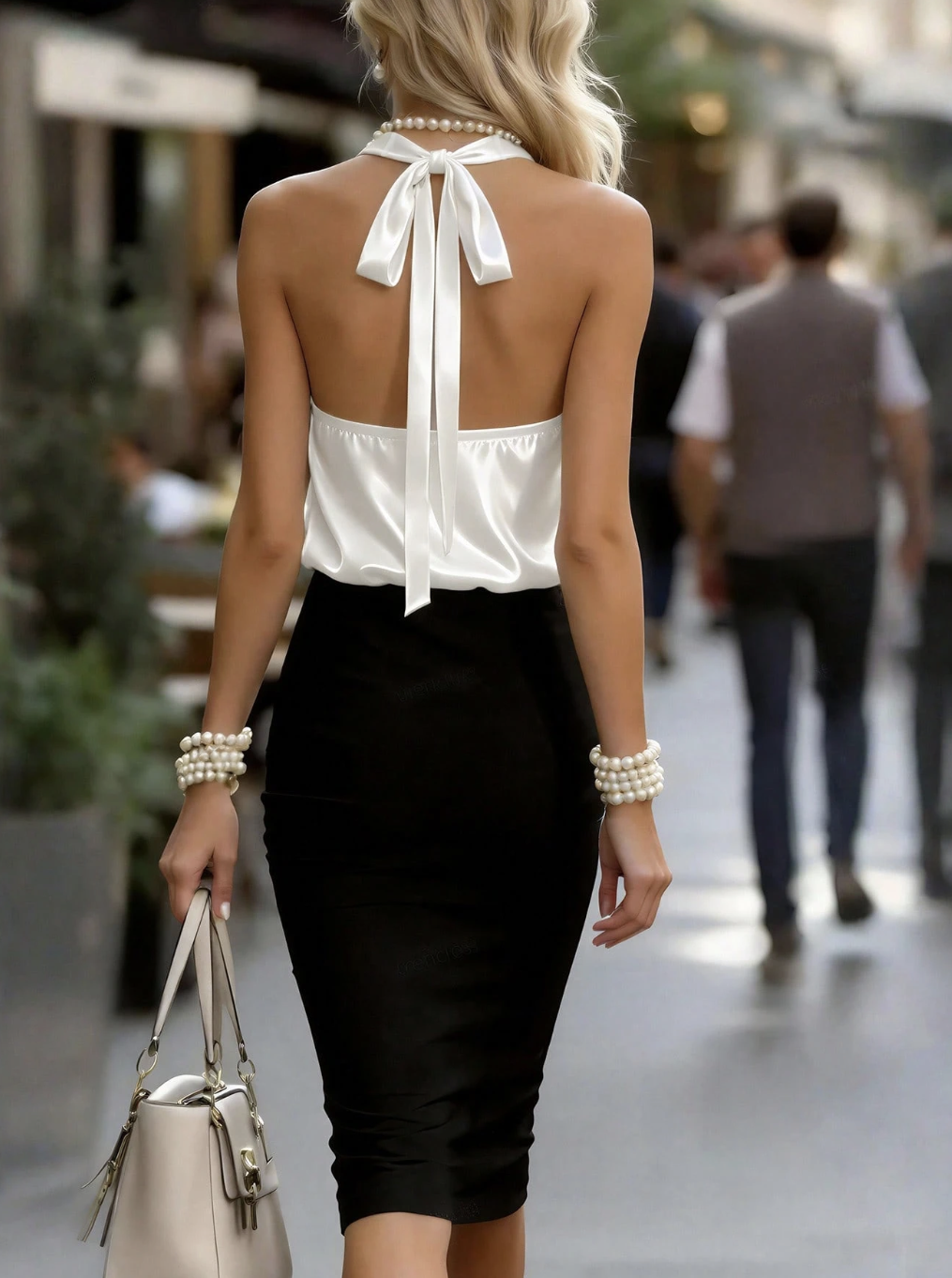
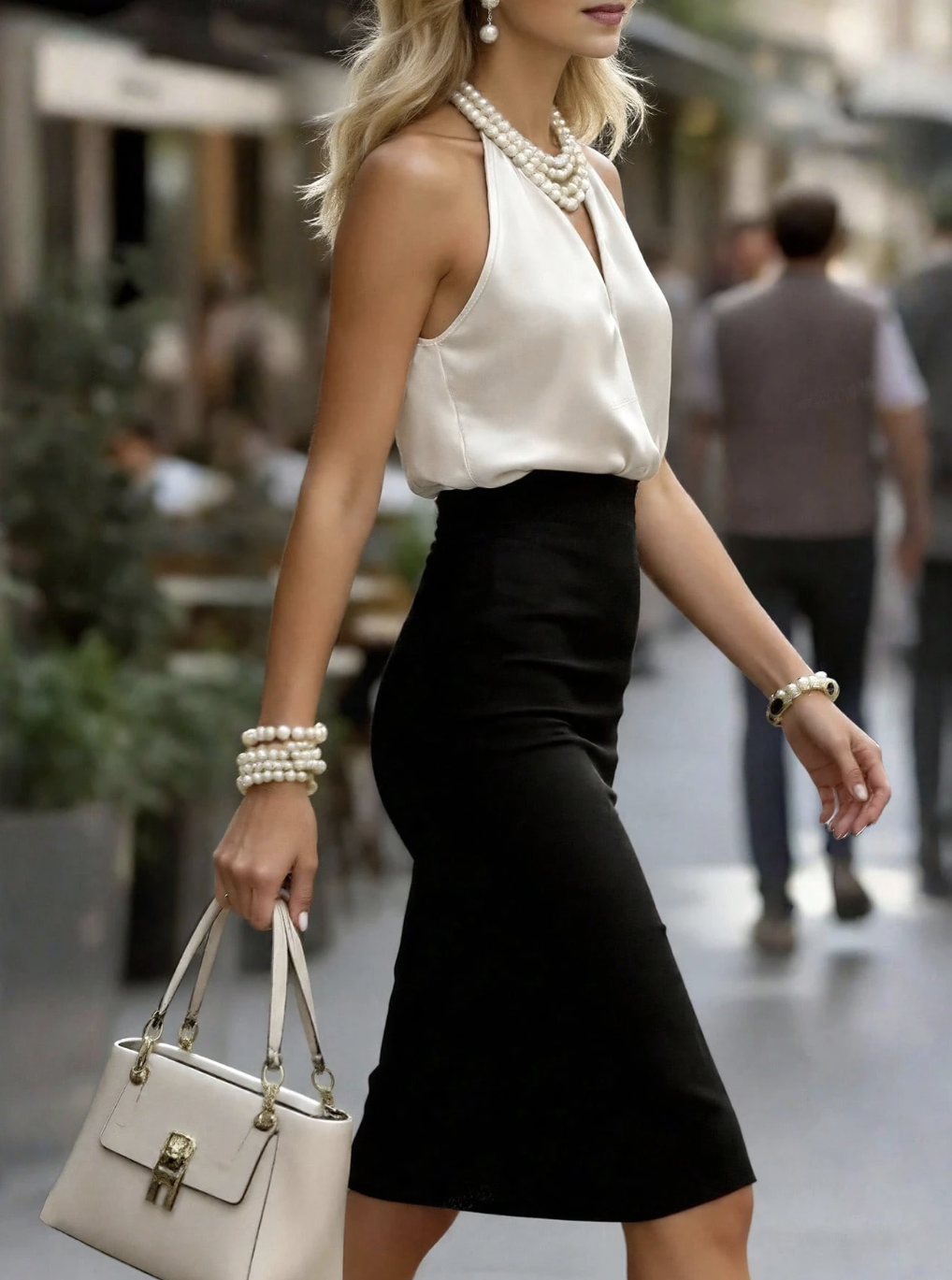
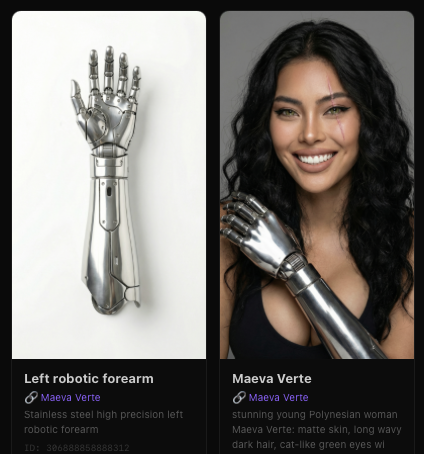
Kling Video O1 - Images Reference + Elements
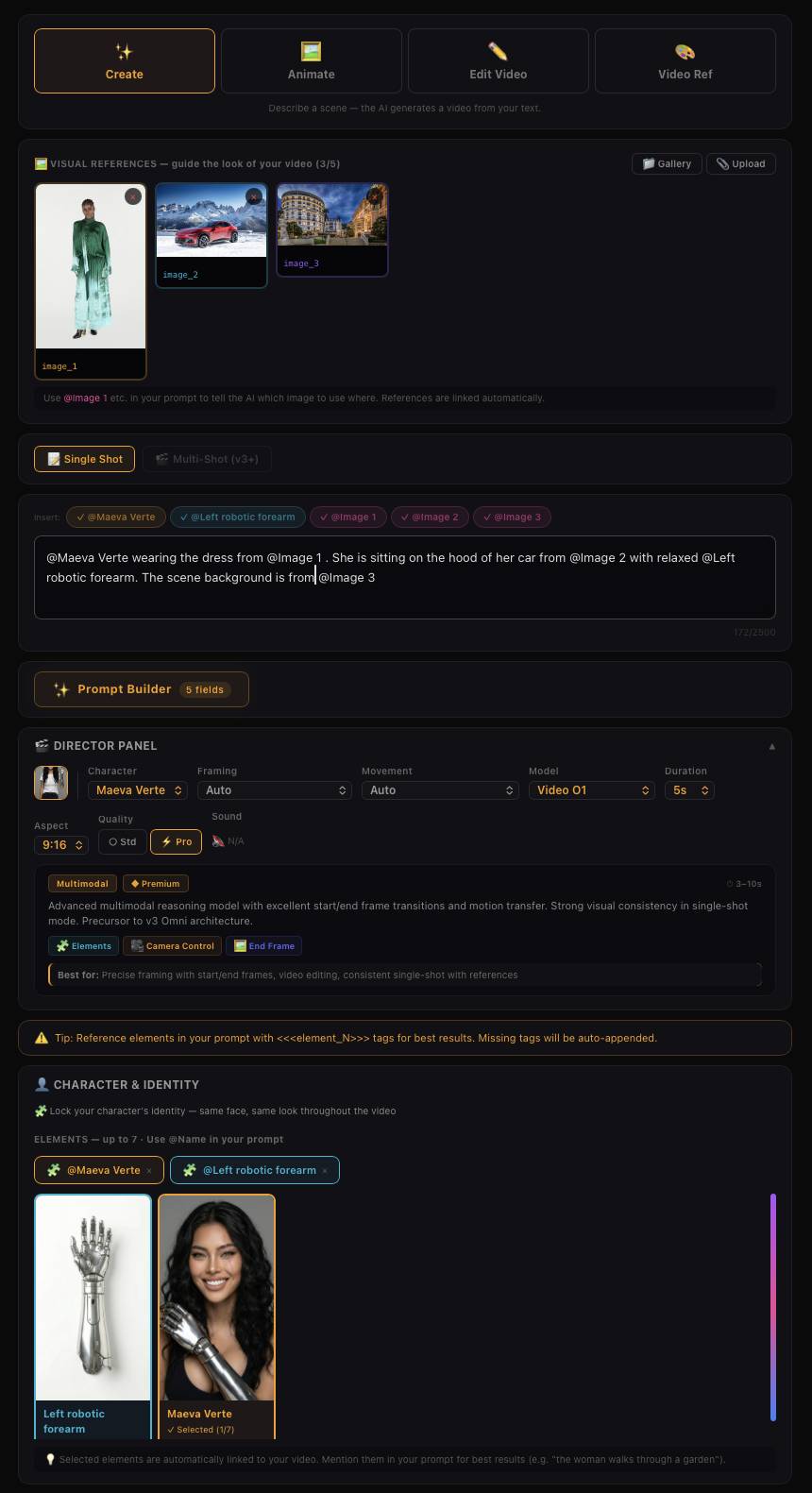
Kling Video O1 - Images Reference + Elements
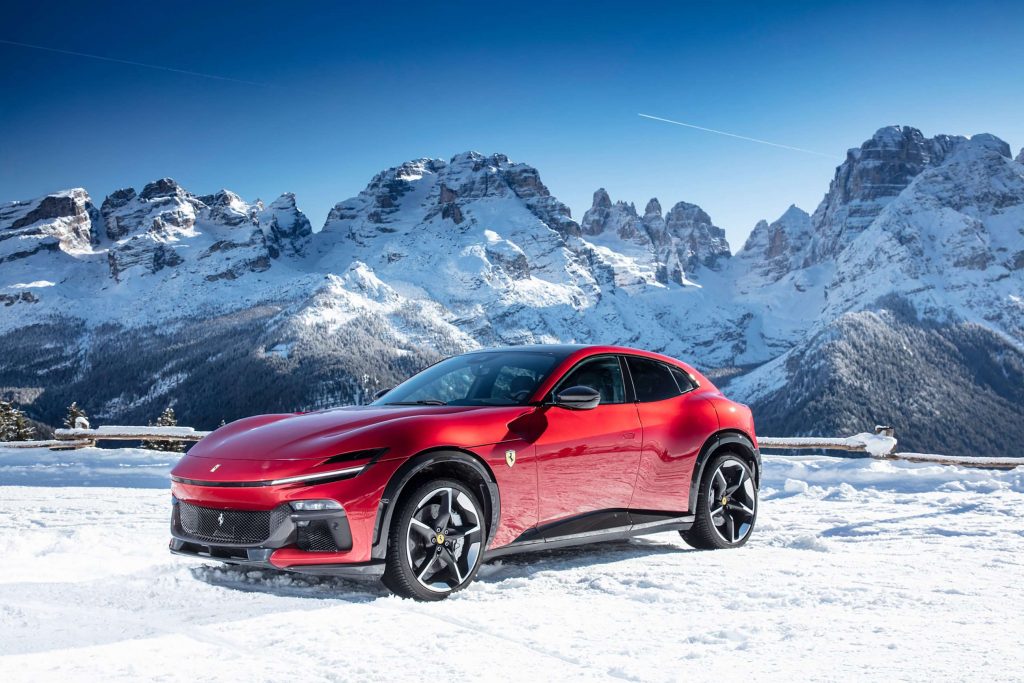
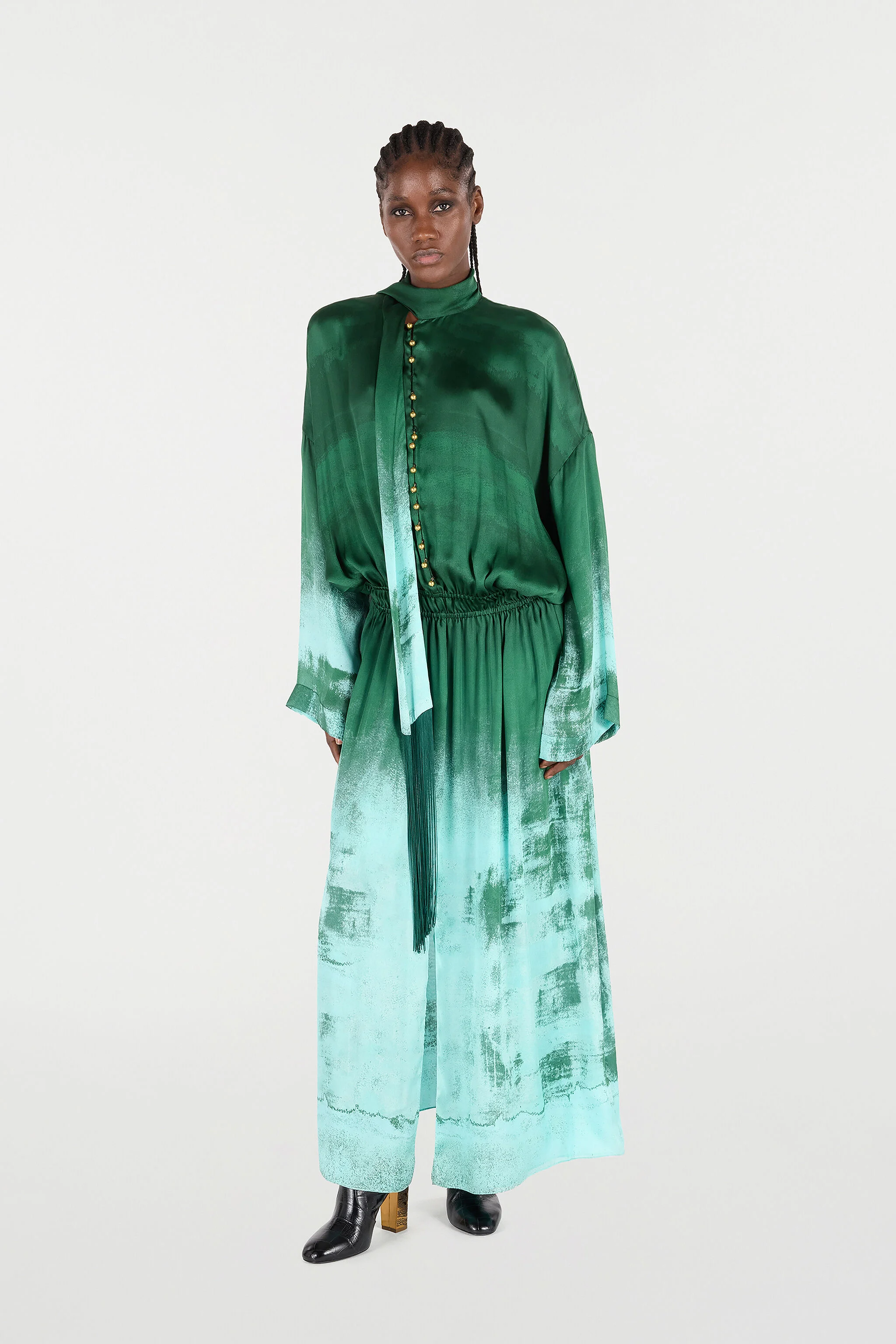
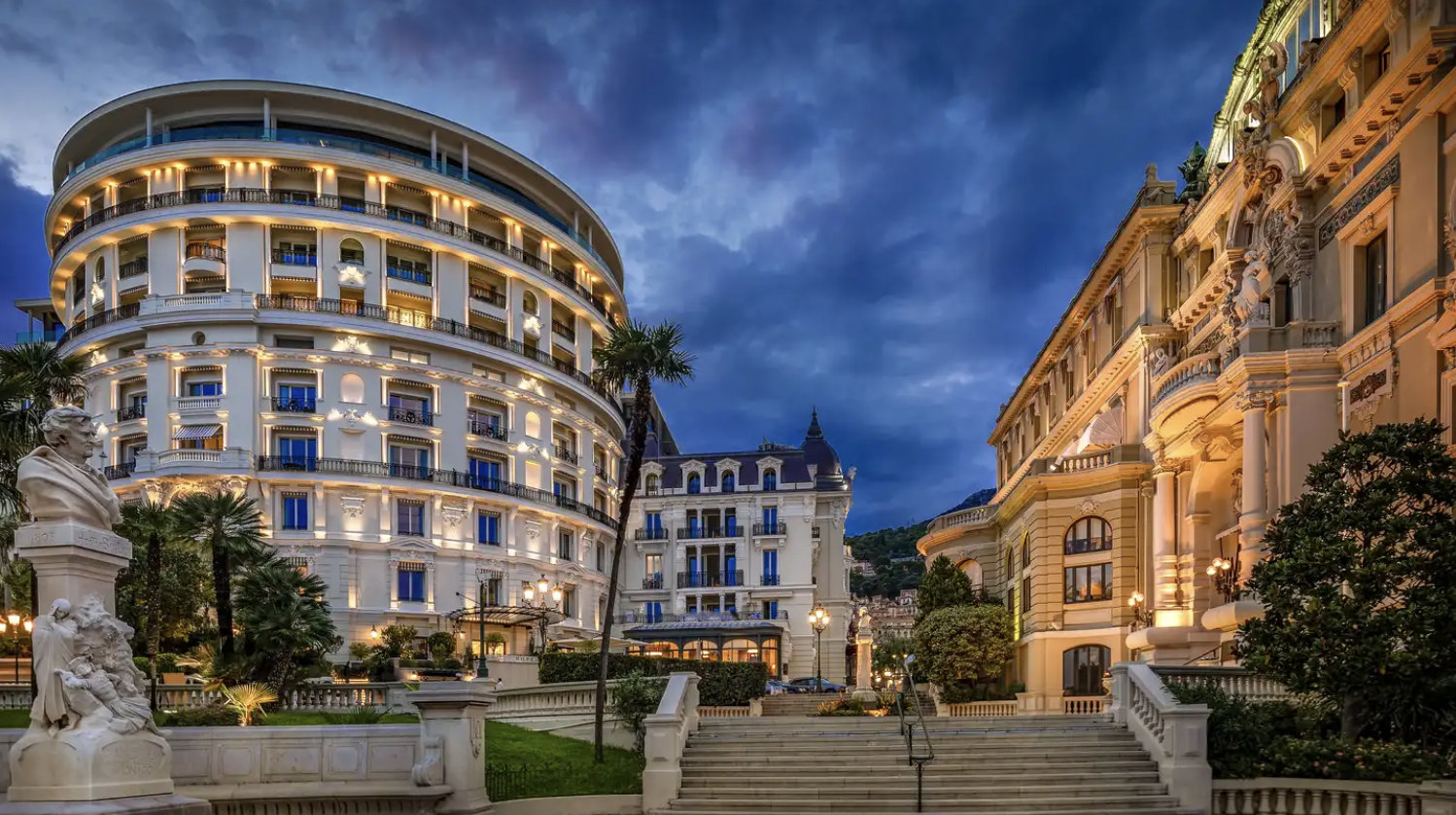
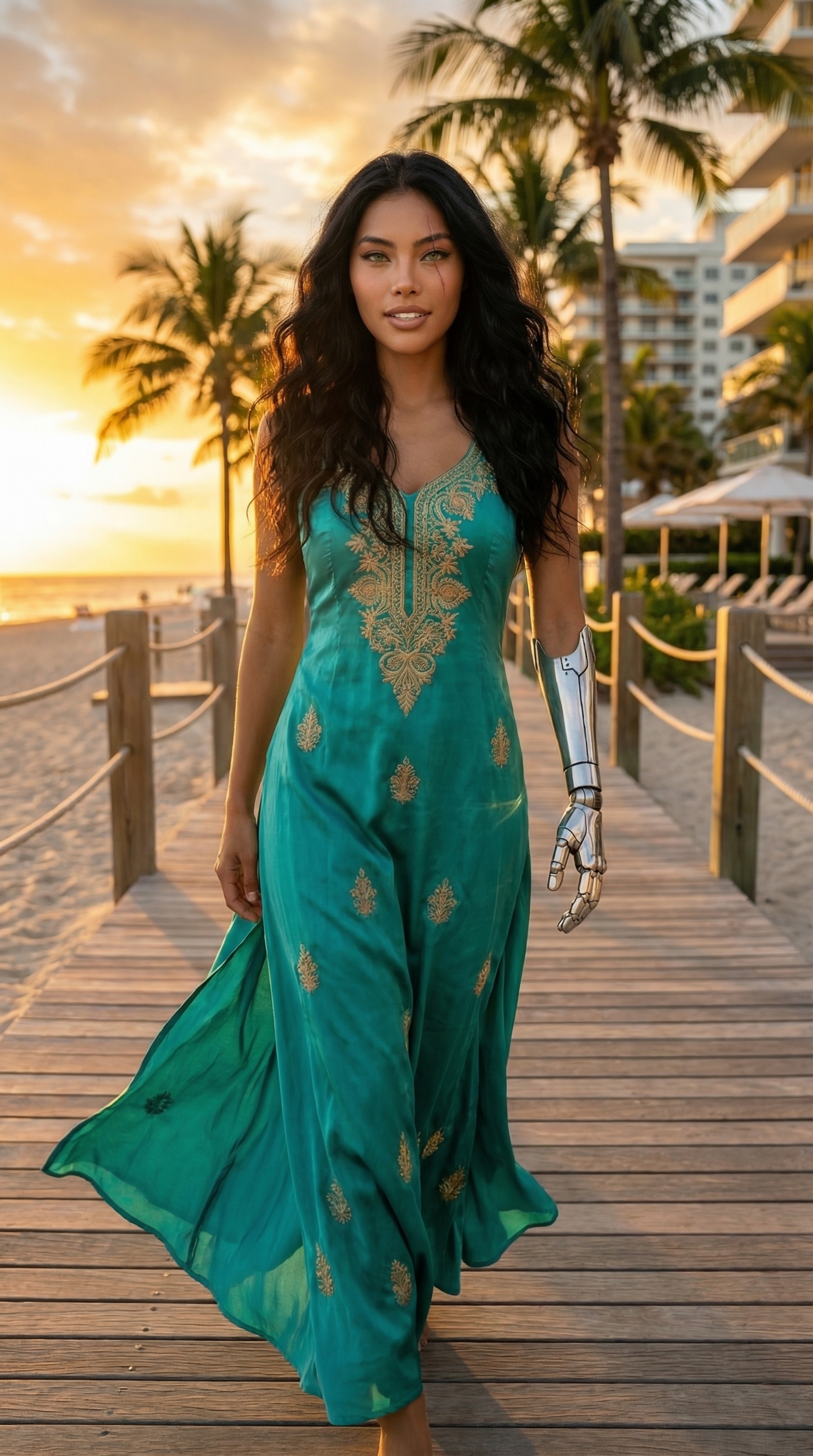
King V3 Omni - Image Reference + Native Audio
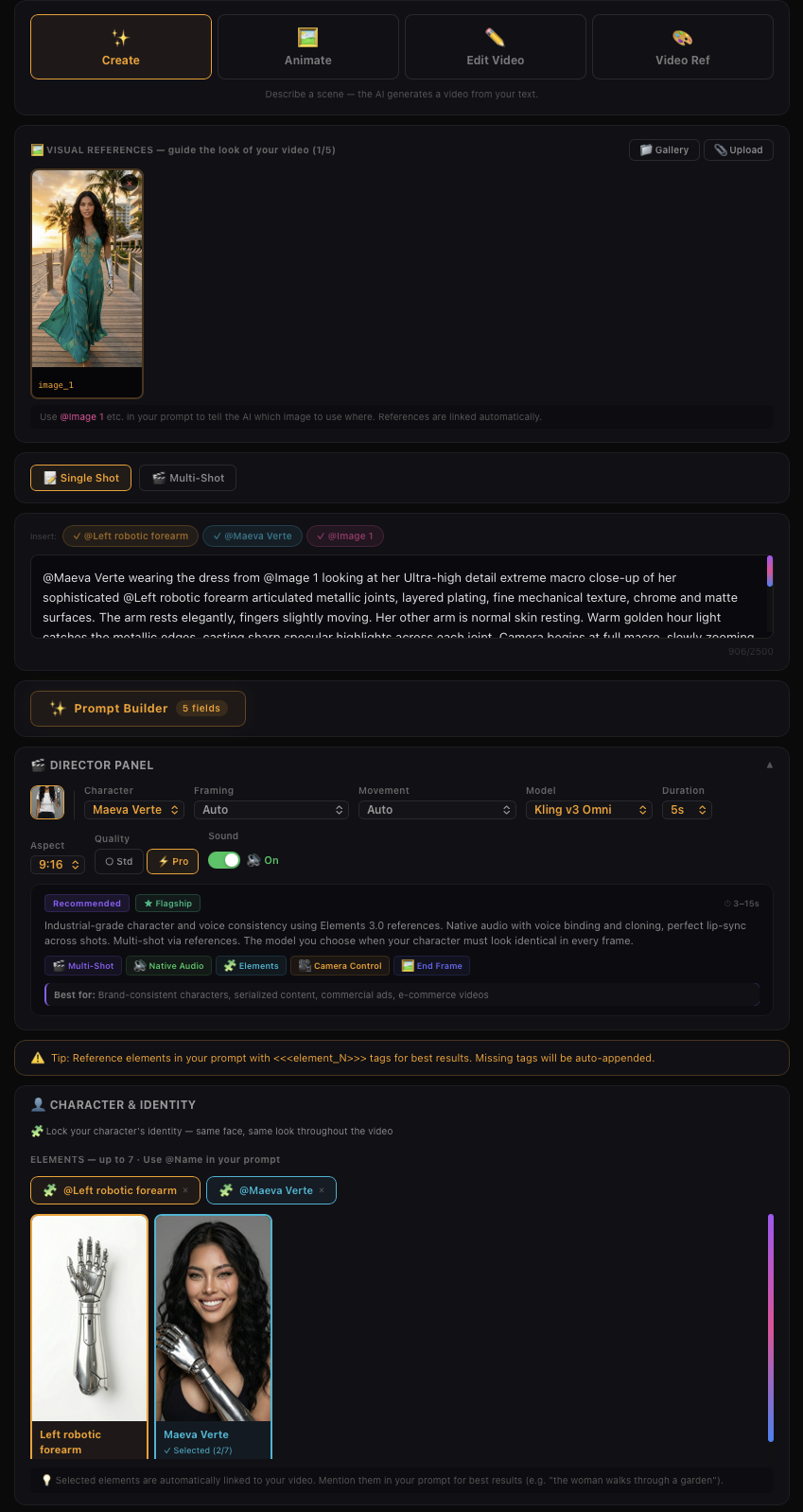
King V3 Omni - Image Reference + Native Audio
In addition to the examples above, you can also achieve the following with Kling O1's multimodal prompt input:
• Image/Element Reference — Supports reference images/elements, including characters, items, backgrounds, and more, to generate with more creativity and consistency.
• Input-based Modification — Supports inpainting/outpainting, or changing shot compositions or angles. It also supports localized or full-scale adjustments, such as modifying/swapping subjects, backgrounds, partial areas, styles, colors, weather, and more.
• Video Reference — Supports using reference video content to generate previous or next shots within the same context or set. It can also reference video actions or camera movements for generation.
• And more — Additional capabilities such as Text to Video, Start & End Frames, and more.
All-in-One Reference: Video Consistency Now Resolved
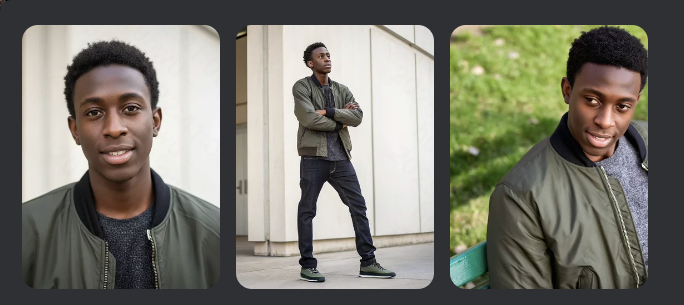
Powerful Combinations: More Creativity Packed in One Generation
The Kling O1 model is not limited to single tasks; it supports a combination of different tasks in one prompt, such as “adding a subject while modifying the background in the video”, or “changing the style while using elements”. This allows you to incorporate multiple creative ideas at once, exploring infinite creative possibilities.
Control the Pace: Supports 3-10s for More Narrative Freedom
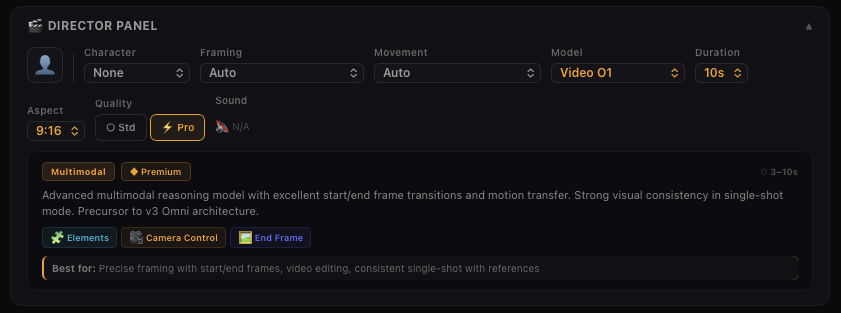
Use Cases in different scenario
Filmmaking
With Kling O1’s exceptional consistency with references, and powerful features like the Element Library, you can lock in characters and props for each project to generate multiple scenes with consistency and continuity.
Advertising
Traditional advertising shoots are costly and time-consuming. In Kling O1, simply upload product, model, and background images along with simple prompts to quickly generate cool shots for product showcases.
Fashion
Shooting with models with different looks and sets could be a lot. With Kling O1, you can create a never-ending virtual runway. Upload model photos and clothing images, input prompts, and create lookbook videos with clothing details perfectly retained.
Film Post-production
Forget about tracking and masking. In Kling O1, post-production is as simple as having a conversation. Input natural language like “remove the bystanders in the background”, or “make the sky blue”, and the model will use deep semantic understanding to automatically complete pixel-level adjustments.
Image Element Reference
Supports uploading 1–7 reference images or elements in the input area. You can combine characters, items, outfits, scenes, and other elements, and use text prompts to define their interactions, bringing static elements to life. Prompt Structure: [Detailed description of Elements] + [Interactions/actions between Elements] + [Environment or background] + [Visual directions like lighting, style, etc]
Transformation
In Kling O1, you can freely combine multimodal inputs — texts and images/elements — to easily add, modify, or remove subjects and backgrounds from the original video. You can also change the video’s style, environment, colors, shot composition, angles, and more.
Video Content Removal
Prompt Structure: Remove [describe content to remove] from [@Video]
Changing Angle or Composition
Prompt Structure: Generate [another angle/composition, e.g, close-up, wide shot] in [@Video]
Modify Subject
Modify Video Background
Localized Modification
Video Restyle
Prompt Structure: Change [@Video] to [Style words: American cartoon, Japanese anime, wool felt, cyberpunk, pixel art, ink wash painting, oil painting, etc] style
Recolor Video Element
Change Weather/Environment
Prompt Structure: Change [@Video] to [describe weather, like “a rainy day”]
Green Screen Keying in Video
Prompt Structure: Change the background in [@Video] to a green screen, and keep [describe content to keep]
Video creative effects
You can directly add flames to elements in the video or freeze the environment in the video via text commands. You can also add facial textures or red-eye effects to characters in the video. Additionally, you can reimagine and redraw the image of the main subject in the video, then replace the original subject to achieve more engaging visual effects.
Video Reference
Generate Next Shot
Based on [@video], generate the next shot: from the back seat, show a medium shot of a middle-aged man and a young man in front. They angle slightly apart, forming a tense, restrained opposition as they turn to look out their windows. The background is blurred, and soft natural light creates muted olive-green and brown tones with light film grain.
Generate Previous Shot
Based on [@Video], generate the previous shot: the camera tracks right, following the middle-aged man in a black suit as he walks to the driver’s door, opens it with his left hand, and gets in, causing a slight shake. The young man in the left foreground speaks while looking at him.
Reference Video for Camera Movements
Prompt Structure: Take [@Image] as the start frame. Generate a new video following the camera movement of the [@video]
Reference Video for Actions
Prompt Structure: Animate the character in [@Image 1] with the same motion as the character in the [@Video]
Frames
You can specify the start and end frames, and describe scene transitions, camera movement, or character actions to control the entire video from beginning to end.
Prompt Structure:
• Take [@Image1] as the start frame, [describe changes in subsequent frames]
• Take [@Image1] as the start frame, take [@Image2] as the end frame, [describe the changes between start and end frames]
💡 You can also click the "Start & End Frames" icon to open the upload slots for the start & end images, making the workflow clearer.
Note: Generation with only an end frame is not supported for now.
Start - End Frame
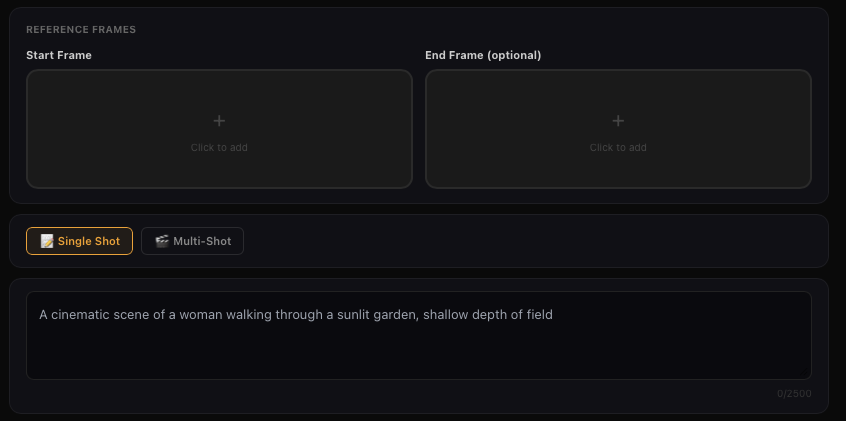
Start - End Frames
Text To Video
Text-to-Video generation can be done by entering text in the input area without uploading any material. For text-to-video, the level of details in the prompt determines the richness of content in the generated video. Prompt Structure: Subject (subject description) + Movement + Scene (scene description) + (Cinematic Language + Lighting + Atmosphere)
More Skill Combos
Besides the abilities above, you can also combine different types of inputs and fully unleash your imagination to achieve even more surprising results. For example, 「image/subject reference + style modification」, 「remove subject + add subject」, 「background modification + add subject + style modification」, 「add subject + style modification」, etc.
Input Media Supported
• Images — You can upload up to 7 images, with minimum resolution 300px, max file size 10MB, in jpg, jpeg or png format.
• Videos — You can upload one video with 3s–10s duration, max file size 200MB, and max resolution 2K.
• Elements — You can upload/generate multiple images from different angles (up to 4 images) to form an element, providing more reference information for the model.
💡 When a video is present, you can upload up to 4 images/elements combined. Without a video, you can upload up to 7 images/elements.