Motion Control — Technical Guide
Sube una foto y un video de movimiento: tu personaje realiza los mismos movimientos, bailes o gestos en un nuevo video de IA
Motion Control — Available Models
💰 Motion Control — Pricing
Kling VIDEO 3.0 Motion Control
Consistent Facial Identity from Any Angle
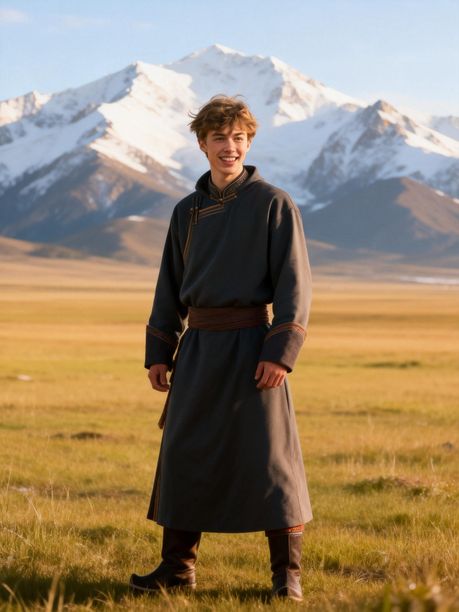
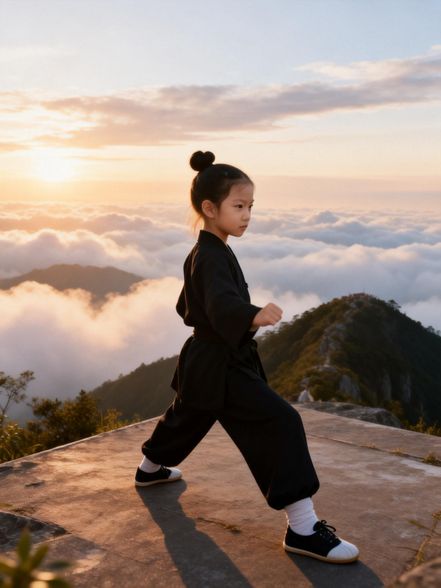
Complex Emotions, Faithfully Reproduced
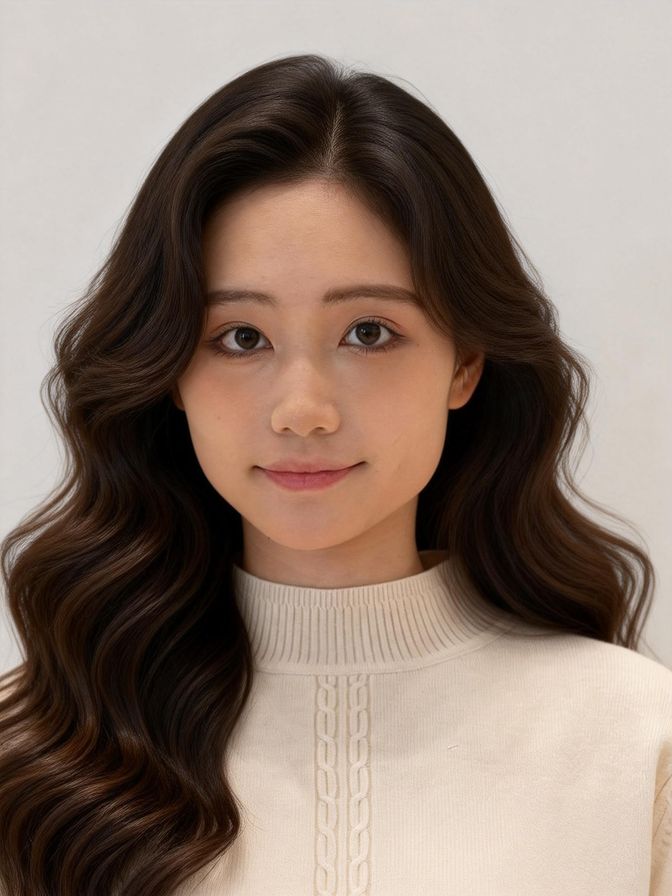
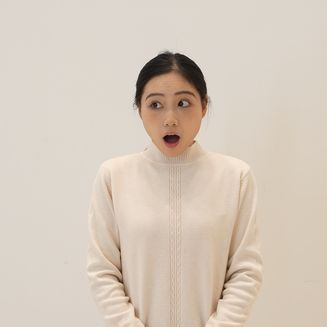
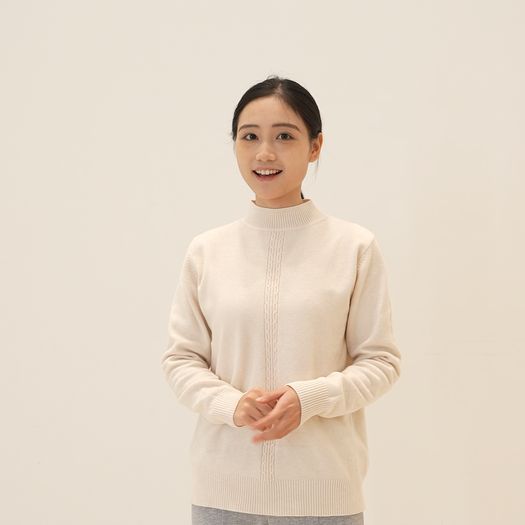
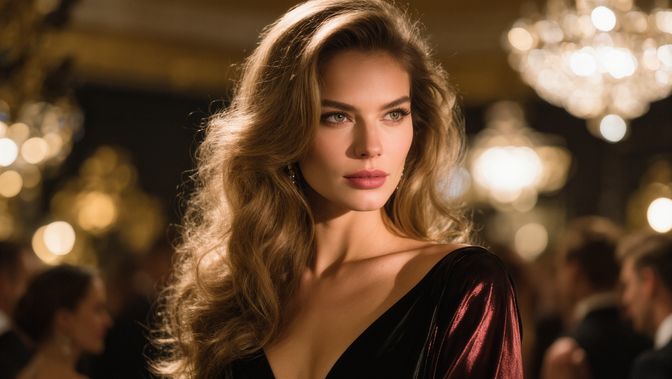
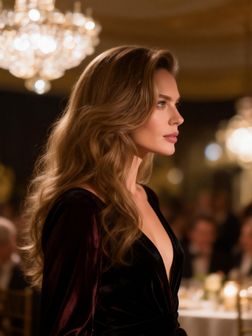
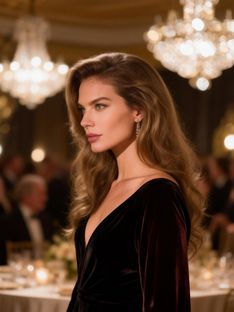
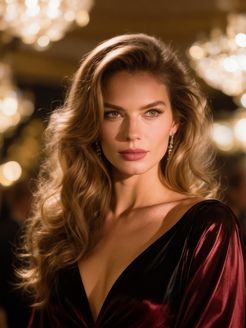
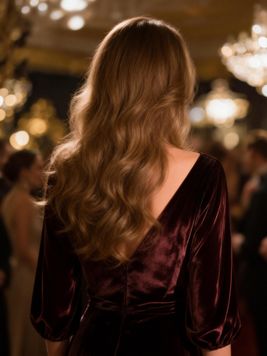
Face Occlusion, High-Fidelity Restoration
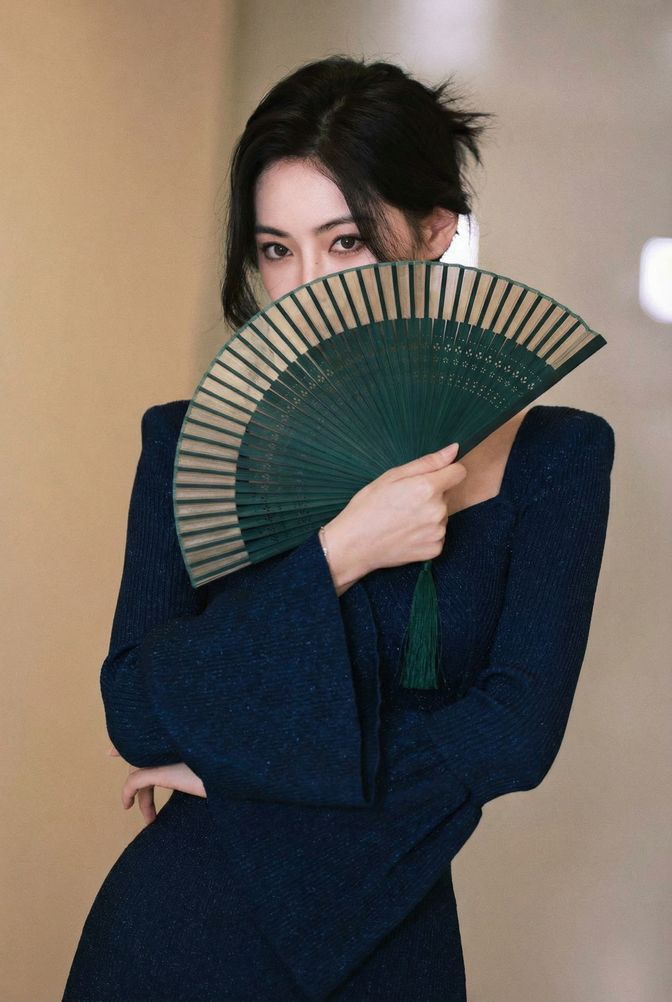
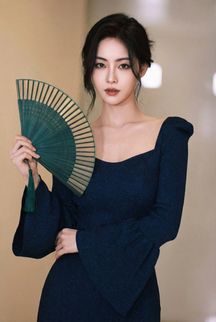

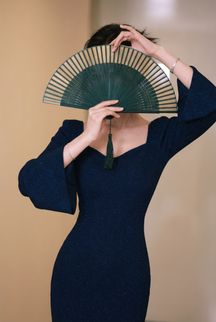
Consistent Facial Clarity Across Dynamic Framing
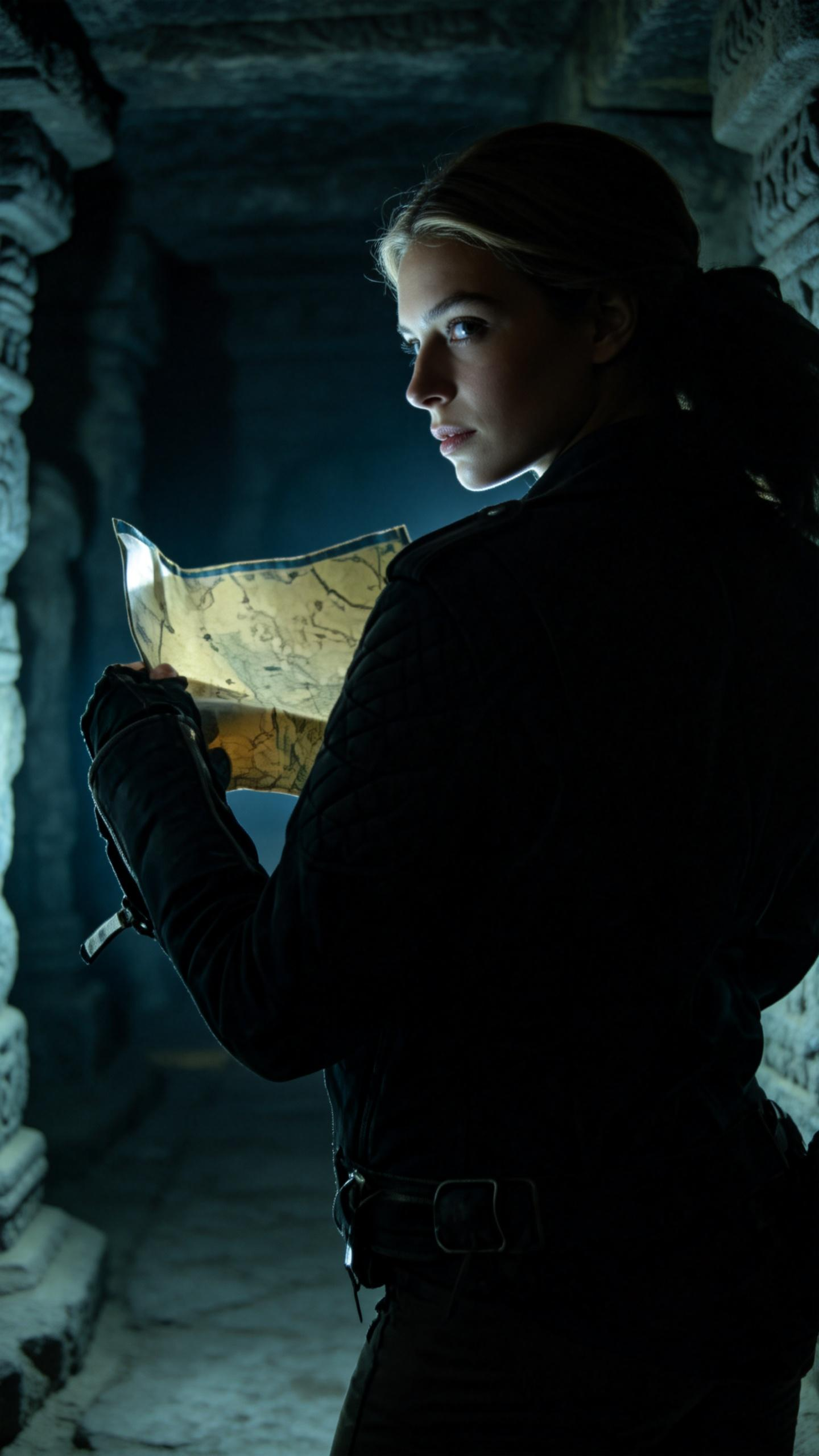
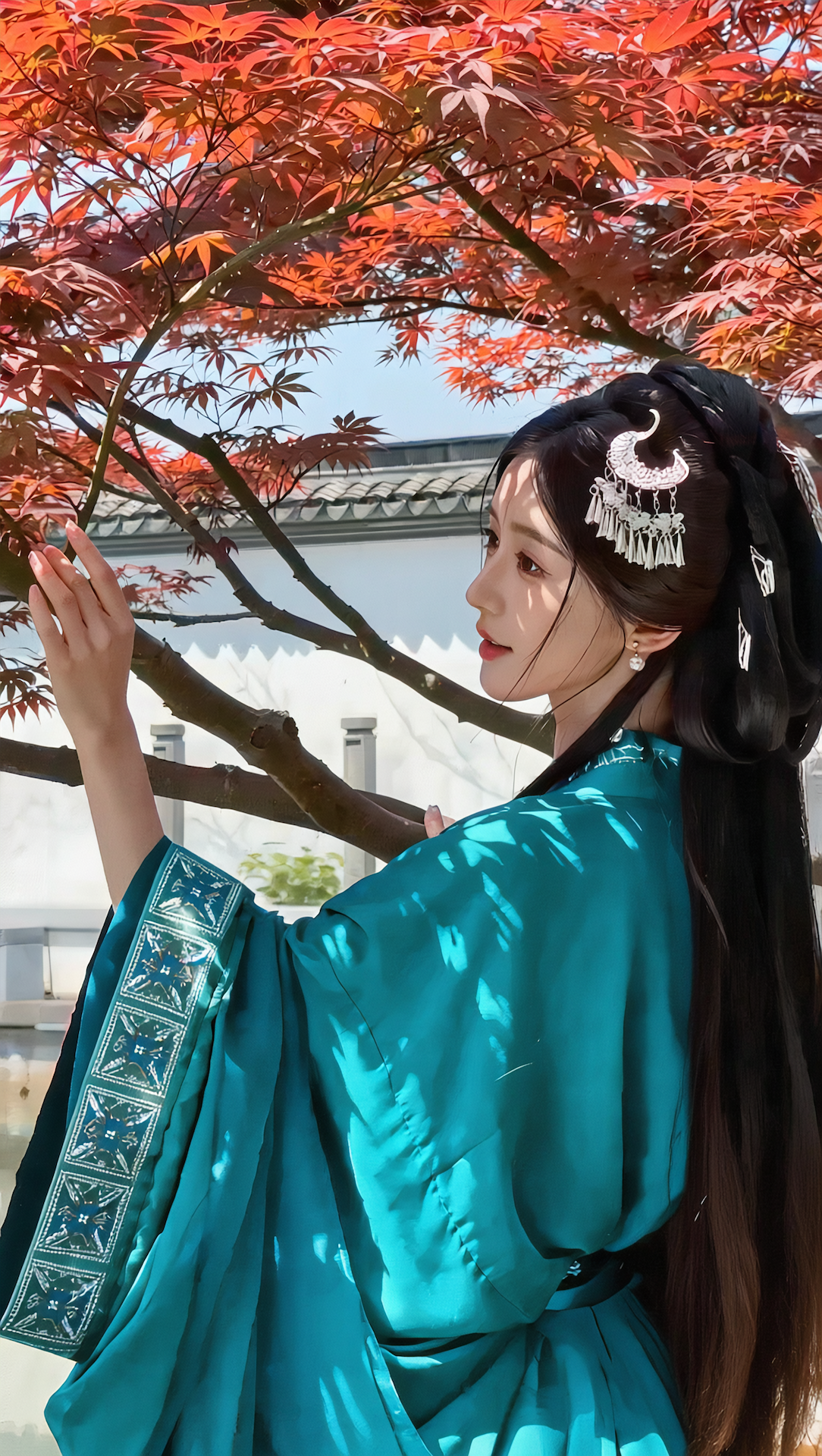
How to Achieve the Desired Outputs
1. The Motion Control Element Library only uses facial information for reference. It does not include clothing, hairstyle, makeup, or props. Therefore, we recommend uploading clear facial close-ups to ensure sufficient facial data.
2. Whether you upload images or videos, follow this core principle: Upload facial references that match the result you want to generate.
a) Head Turn Accuracy — To achieve more accurate head turns, upload: a front-facing view, side views (left and/or right).
b) Facial Expression Accuracy — To better match facial expressions (such as smiling), upload: a neutral front-facing image, a smiling front-facing image.
c) 360° Smiling Rotation — For a seamless 360° smiling rotation, upload: front-facing smile, left-profile smile, right-profile smile, upward-facing smile, downward-facing smile.
d) Complex Emotional Transitions with Head Movement — For complex emotional changes (e.g. happy to sad) combined with head turns, upload: a front-facing image, a smiling expression, a sad expression, side views (left or right).
e) If you need complex facial expressions while maintaining high identity accuracy, we strongly recommend uploading a video, which provides richer and more continuous facial information.
3. Edge Cases
— The first frame in Motion Control may contain multiple people, but only one element is supported; the system will select the person with the largest on-screen presence as the element. If the elements occupy similar portions of the frame, no element will be selected.
— If the element's face differs significantly from the face in the first frame, there is a small chance that facial quality may degrade — for example, when using a cat's face to reference a human.
Technical Requirements:
1. Ensure the character's entire body and head are clearly visible and not obstructed.
2. Upload a single character motion reference. For motion references with two or more characters, the motion of the character occupying the largest portion of the frame will be used for generation.
3. Real human actions are recommended, while certain stylized humanoid or humanoid body proportions can be recognized.
4. The action video must be a single continuous shot, with the character consistently visible in the frame. Please avoid cuts, shot changes, or camera movements; otherwise, the video may be truncated.
5. Avoid overly fast motions; steady, moderate movements yield the best results.
6. The short edge must be at least 340px, and the long edge must not exceed 3850px.
7. The supported duration for uploaded action videos is 3–30 seconds, and the generated video duration will match the length of the uploaded video. If the action is highly complex or performed at a very fast pace, there is a possibility that the generated result may be shorter than the original upload. This is because the model extracts only the valid and continuous action segments for generation. As long as a minimum of 3 seconds of usable continuous motion is extracted, the video can be generated. Please note that in such cases, the consumed Credits are non-refundable. We recommend adjusting the action difficulty and speed accordingly for optimal results.
Perfectly Synchronized Full-Body Motions
How to Achieve the Desired Outputs
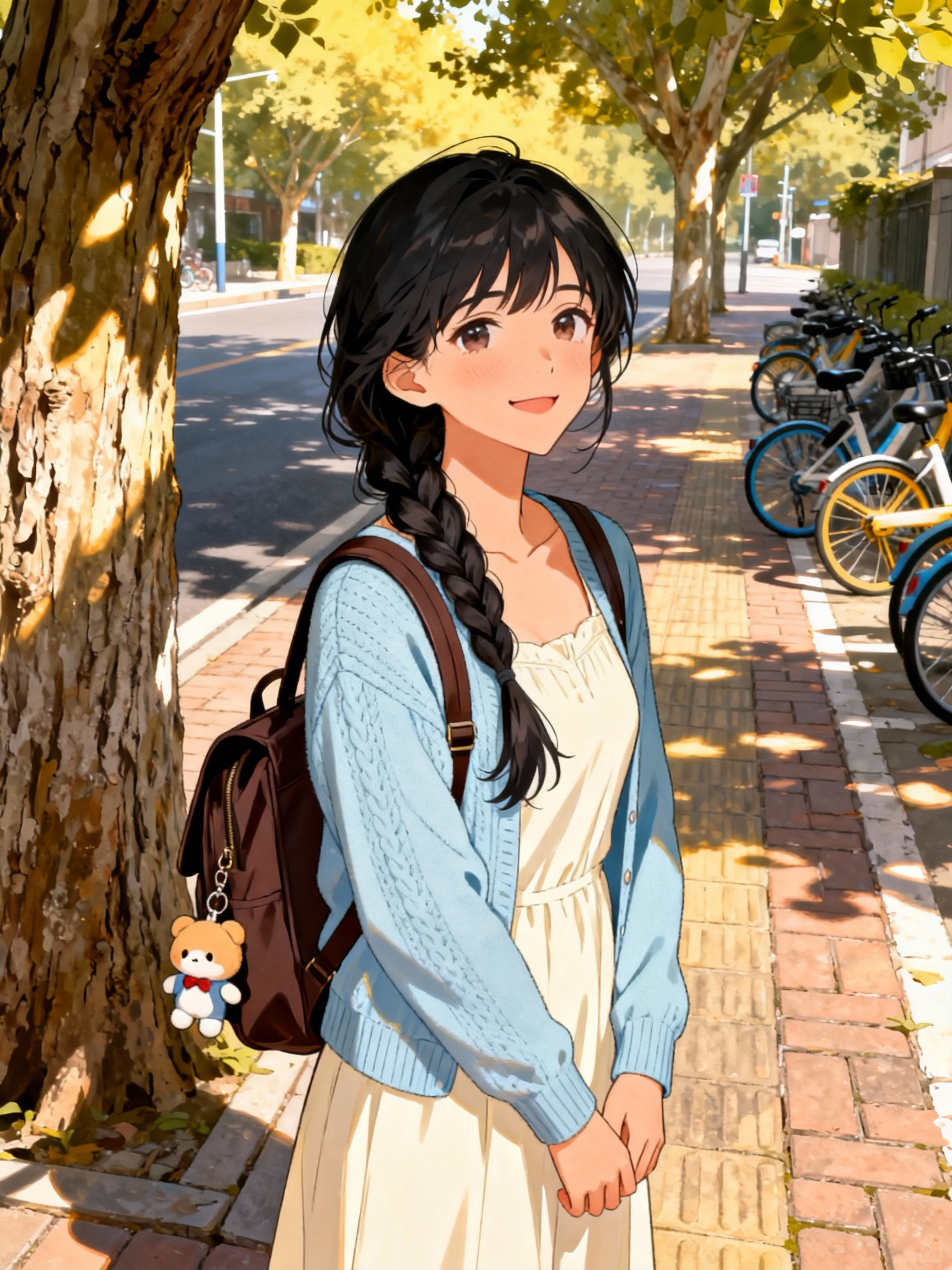
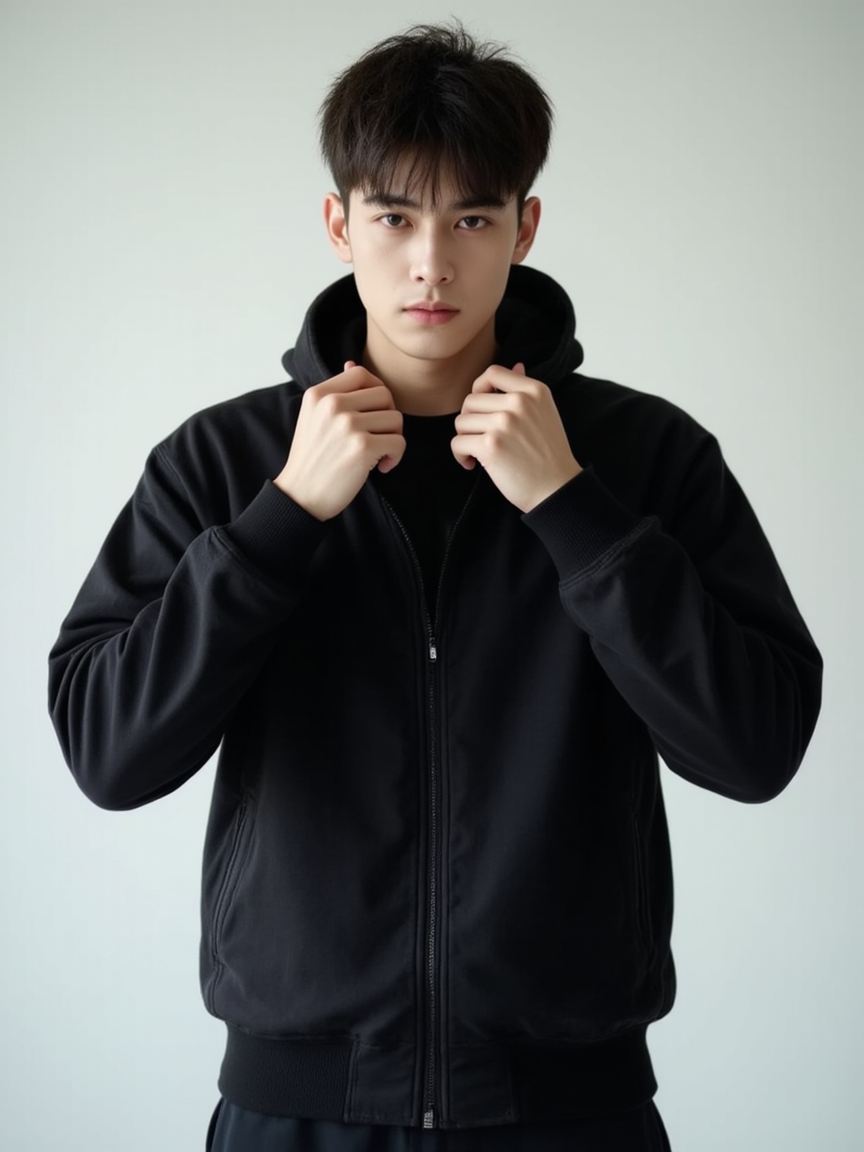
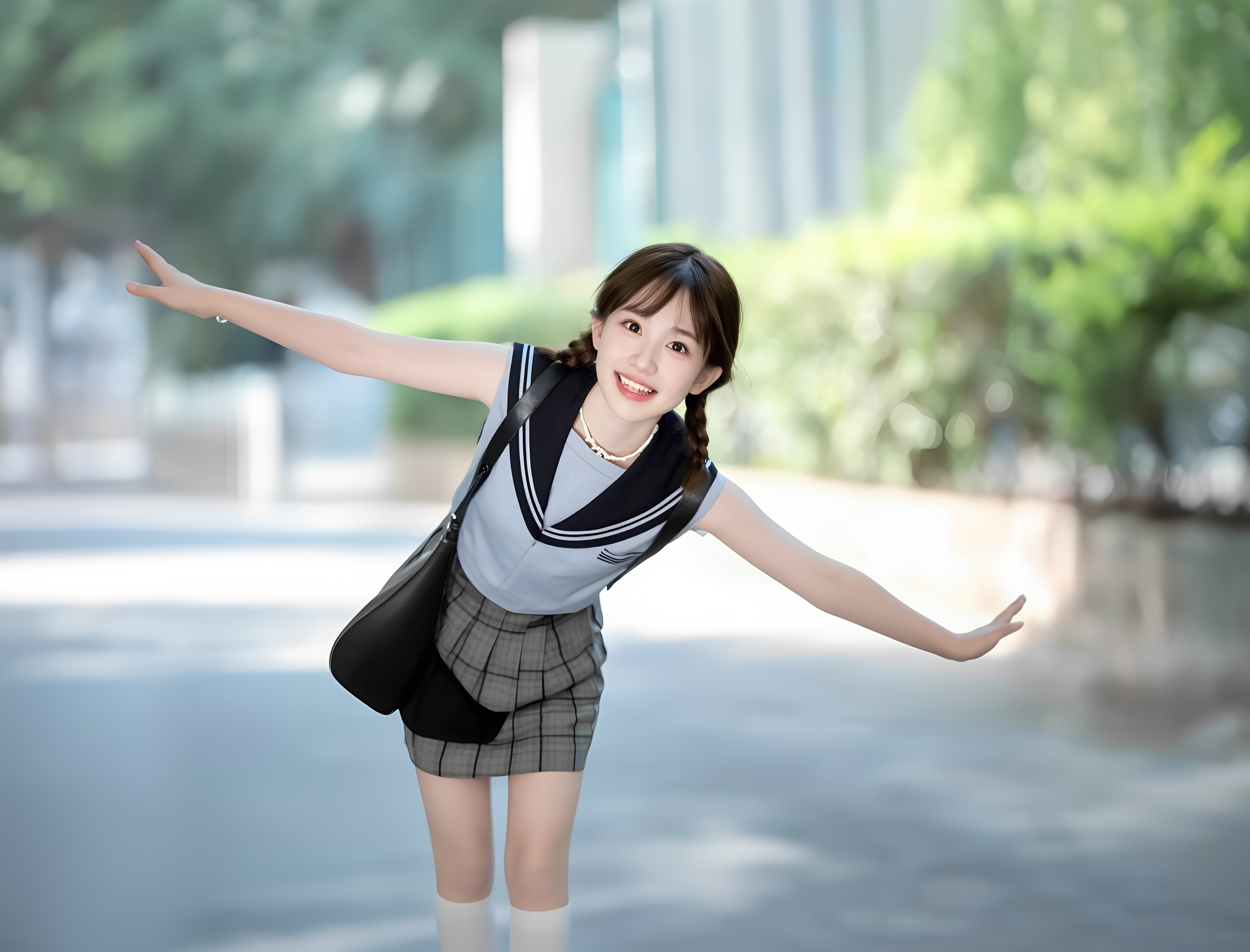
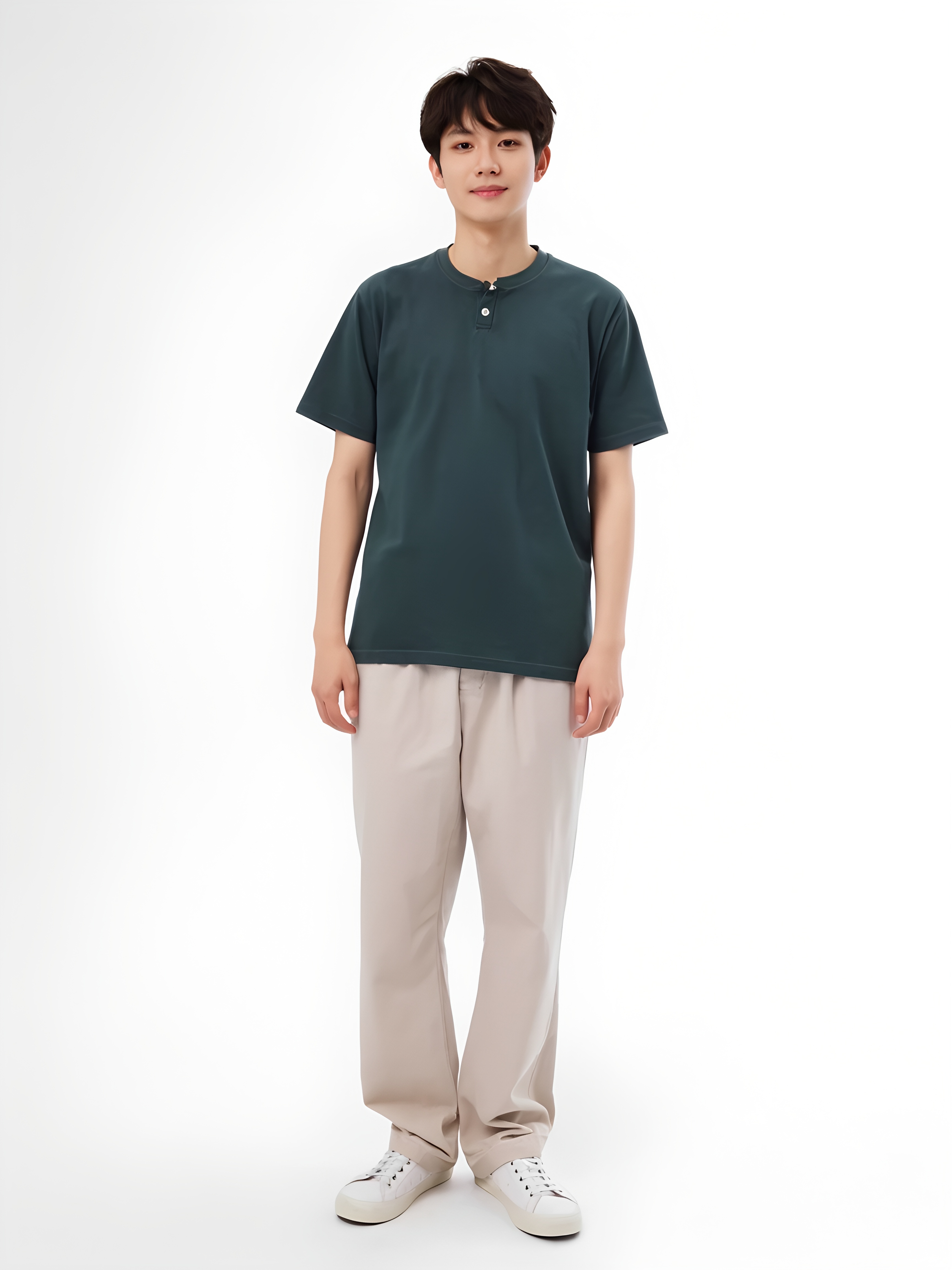
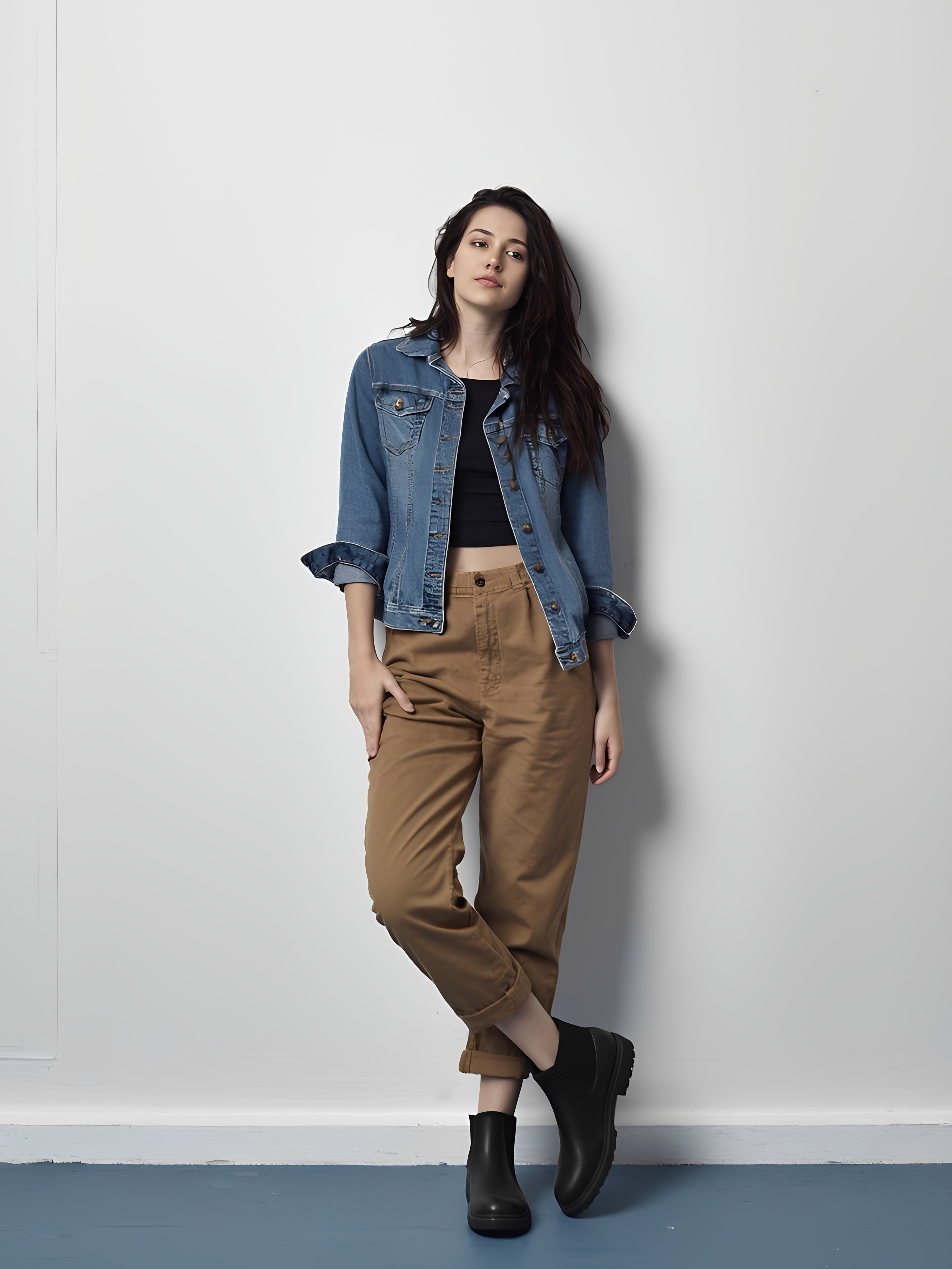
1. Match the character's full-body/half-body in the image reference with the full-body/half-body in the motion reference.
2. Use a motion reference that features a wide range of motion, moderate speed, and minimal displacement.
3. For large motion references, ensure there is enough space in the image reference for the character to move freely.
Image Reference
Motion Reference
1. Ensure the character's entire body and head are clearly visible and not obstructed.
2. Upload a single character motion reference. For motion references with two or more characters, the motion of the character occupying the largest portion of the frame will be used for generation.
3. Real human actions are recommended, while certain stylized humanoid or humanoid body proportions can be recognized.
4. Avoid cuts and camera movements in the motion reference.
5. Avoid overly fast motions; steady, moderate movements yield the best results.
6. The short edge must be at least 340px, and the long edge must not exceed 3850px.
7. The duration range of the uploaded motion reference is from 3 to 30 seconds, in which the generated video length will align with the duration of the uploaded video. If motions are complex or fast-paced, there is a chance that the output may be shorter than the uploaded video duration, as the model can only extract the valid action duration for generation. The minimum extractable continuous action duration is 3 seconds. Please note that in such cases, the consumed credits cannot be refunded. It is recommended to adjust the complexity and speed of the actions accordingly.
Character Orientation
1. By default, the video will be generated through "Character Orientation Matches Video", and the character's movements, expressions, camera movements, and orientation will follow the motion reference. Other details can be controlled via prompts.
2. When you choose "Character Orientation Matches Image" to match the character orientation with the image reference, the character's movements and expressions will follow the motion reference, and the orientation will align with the character orientation in the reference image. Camera movements and other elements can be customised through prompts.
Character Orientation Matches Image
Camera Movement Showcase