Elements — Technical Guide
Train the AI to recognize your character, object, or costume permanently — upload reference photos once, then reference them by name in any Kling video or image generation
Train the AI to recognize your character, object, or costume permanently — upload reference photos once, then reference them by name in any Kling video or image generation
Elements is your character and object library. Instead of uploading the same reference photos every time you generate content, you train the AI once — upload a few photos of a person, object, costume, or scene — and the AI learns what it looks like. From that point on, you just reference the element by name in your prompts and the AI knows exactly what to generate.
Two training modes are available. Image Reference lets you upload 1 frontal photo plus up to 3 additional angles — the AI learns the visual appearance and can reproduce it across any generation. Video Reference lets you upload a short video clip (3 to 8 seconds) — the AI learns both appearance and movement style, and can even extract the voice automatically if the person speaks in the clip.
Once an element is created, it works everywhere across the Kling ecosystem. In Omni Image, reference it as <<<element_name>>> in your template prompt. In Kling Video, reference it the same way. The element carries consistent identity across all generations — same face, same proportions, same distinctive features — without you needing to upload photos again.
Tags let you organize your library by type: Character, Animal, Item, Costume, Scene, or Effect. Creating elements is free — costs only apply when you use them in image or video generation.
✦ Best Results Tips
👤
Clear Frontal Photo is Essential
The first image must be a clean, well-lit frontal shot — face looking straight at the camera with no obstructions. This is the primary reference the AI uses to learn the identity. Everything else builds on this image.
📐
Add Multiple Angles
Upload up to 3 additional photos from different angles — side profile, three-quarter view, slightly above or below. More angles give the AI a fuller understanding of the face and body from every direction.
🎬
Video Reference for Movement and Voice
If you want the AI to learn how a character moves and sounds, use Video Reference mode. Upload a short 3 to 8 second clip of the person speaking or moving — the AI extracts appearance, motion style, and voice together.
🏷️
Use Descriptive Names
Give your element a clear, memorable name — Maeva, Red Dress, Beach Scene — not element_001. You will type this name in prompts across other tools, so it should be easy to remember and type.
♻️
Create Once, Use Everywhere
An element works in Omni Image and Kling Video. Train your character as an element and you never need to re-upload reference photos — just type <<<element_name>>> in any prompt to include them.
🆓
Free to Create
Creating and managing elements costs nothing. You only pay credits when you generate images or videos that use the element. Build your entire character library without spending anything.
Elements — Available Models
custom-elements
Creates reusable character/object reference assets.
📥
You Give
📝Text Prompt
👤Face Reference Image
👕Clothing Reference (optional)
🎨Style Reference (optional)
🎬Video Reference (optional)
🔊Voice / Sound (optional)
Element types
Character
Animal
Item
Costume
Scene
Effect
📌
Image reference (1 frontal + 3 angles)
Reference mode
📌
Video reference (3-8s, 1080p)
Reference mode
Features
Voice auto-extraction from video
Persistent library
Cross-tool references
💰 Elements — Pricing
Estimated cost
—
Failed jobs are automatically refunded
Take full control of your video's composition. This guide shows how to use the "Elements" feature with 1-4 images for character consistency and multi-subject interactions.
The Elements feature is now available with the Kling AI 1.6 model for Image to Video generation! Upload 1–4 images, select the subjects (people, animals, objects, or scenes) in the images as elements, and describe their actions and interactions. A video will be created based on the elements and the prompt.
Compared with Text to Video generation, the Elements feature allows more creative control so that you can decide the elements to keep consistent in the video. Compared with the Frames feature, the Elements feature is more flexible with more references than the content in the Start / End Frame. With Elements, you can explore more possibilities by putting a subject in different scenes, or having multiple subjects interact with each other!
Using Elements for character consistency
Upload one or multiple images as elements of a subject (person, character, animal, object, etc.), and a video will be created based on the image references with a consistent style. This can be particularly useful to achieve consistent looks on a character across different shots.
In addition, you can also set scenes or clothing as elements, and specify the actions in the prompt, to make the subject look and move in a certain way, in a certain scene. This allows for more creative control in your work.
Elements
Result
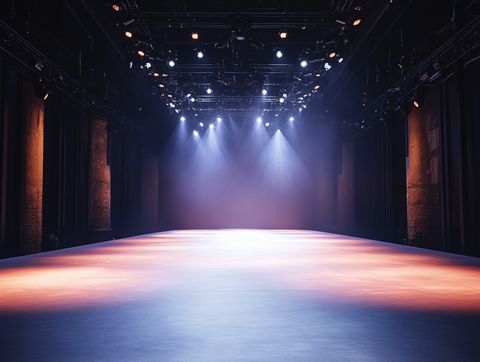
Prompt: On the stage @element3, a girl wearing fashionable clothes @element1 and a crystal crown @element2 calmly gazes at the camera.
Elements
Result
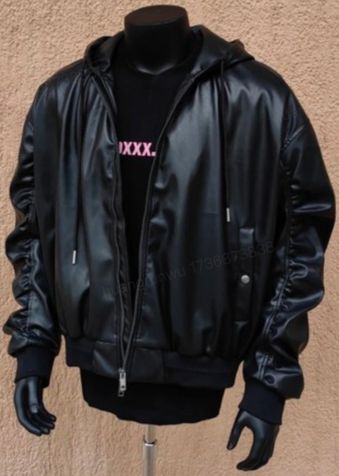
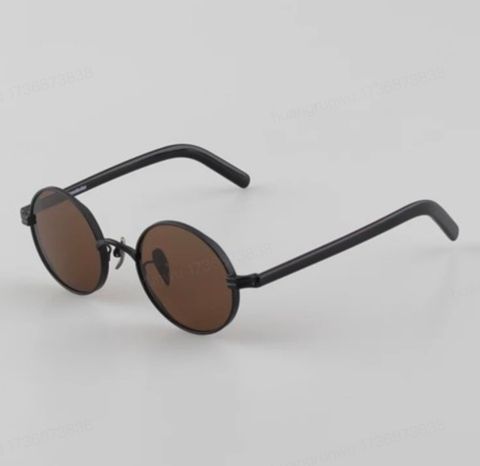
Promt: A standing cat @element1 character wearing a jacket @element2 and sunglasses @elemen3 strikes a pose towards the camera on the stage.
Elements
Results
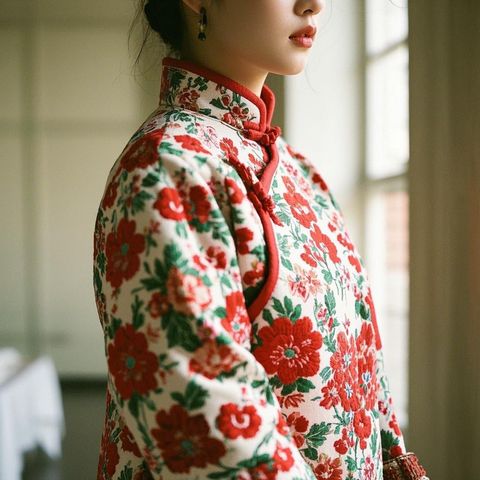
Prompt: A white Bichon Frisé @element1 wearing a red floral Chinese-style winter @element2 coat licks its paw.
Elements
Result
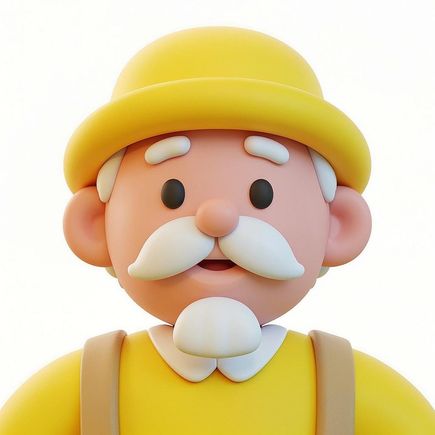
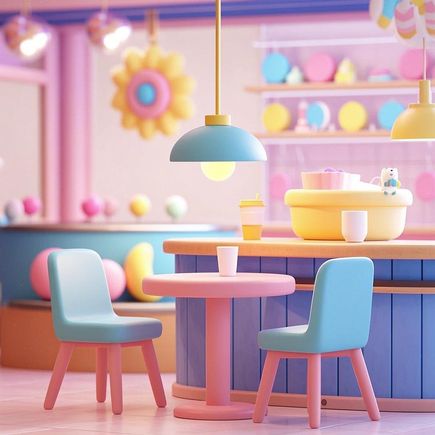
Prompt: In a café @element1, a cartoon-style elderly man @element2 lifts a cup @element3 to drink coffee.
Using Elements for interactions between characters
Upload images of multiple subjects (people, animals, objects, etc), and describe their interactions.
Elements
Result
Prompt: Two girls @element1 @element2 hug each other.
Elements
Result
Prompt: A boy @element# rides a Pegasus @element2 , soaring through the air, in a magical style.
Elements
Result
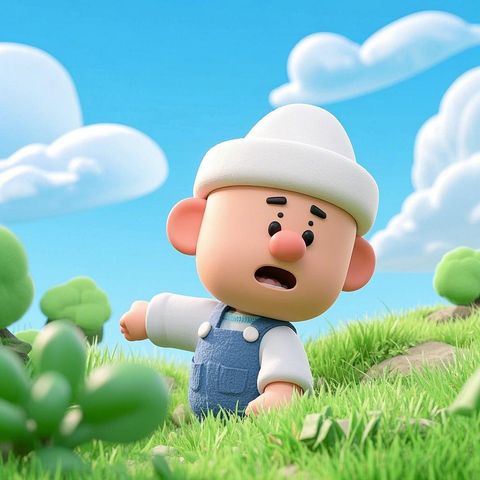
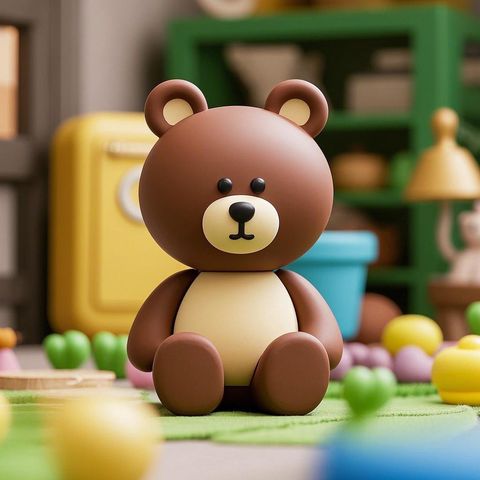
Prompt: A cartoon character @element1 wearing a white hat, and a cartoon-style bear @element2 , sitting side by side, wave and nudge at each other.