Home AIツール AIガイド AIモデル AIクリエイター 🛒 購入 始める
🎬 KLING AI ⏱ 3 min read 🧩 Elements

Elements — Technical Guide

AIにあなたのキャラクター、オブジェクト、またはコスチュームを永久に認識させる — 参照写真を一度アップロードし、その後はKlingのビデオや画像生成で名前で参照します。

🧩

Elements

klingai utility /app/elements →
AIにあなたのキャラクター、オブジェクト、またはコスチュームを永久に認識させる — 参照写真を一度アップロードし、その後はKlingのビデオや画像生成で名前で参照します。
Elementsはあなたのキャラクターとオブジェクトのライブラリです。同じ参照写真を毎回アップロードする代わりに、AIを一度トレーニングします — 人、オブジェクト、コスチューム、またはシーンの写真を数枚アップロードすると、AIはそれがどのように見えるかを学びます。その時点からは、プロンプトで名前で要素を参照するだけで、AIは正確に何を生成すべきかを知っています。

2つのトレーニングモードがあります。画像参照では、1枚の正面写真と最大3つの追加角度をアップロードできます — AIは視覚的な外観を学び、どの生成でも再現できます。ビデオ参照では、短いビデオクリップ(3〜8秒)をアップロードできます — AIは外観と動きのスタイルの両方を学び、クリップ内で人が話している場合は声を自動的に抽出することもできます。

要素が作成されると、Klingエコシステム全体で機能します。Omni Imageでは、テンプレートプロンプトで<<<element_name>>>として参照します。Kling Videoでも同じように参照します。要素はすべての生成で一貫したアイデンティティを持ちます — 同じ顔、同じ比率、同じ特徴 — 再度写真をアップロードする必要はありません。

タグを使用してライブラリをタイプ別に整理できます:キャラクター、動物、アイテム、コスチューム、シーン、またはエフェクト。要素の作成は無料です — 画像またはビデオ生成で使用する場合のみコストがかかります。
✦ Best Results Tips
👤 クリアな正面写真が必須
最初の画像は、クリーンで明るい正面ショットでなければなりません — 顔がカメラを真っ直ぐ見ていて、障害物がないこと。この画像はAIがアイデンティティを学ぶための主要な参照です。他のすべてはこの画像に基づいて構築されます。
📐 複数の角度を追加
異なる角度から最大3枚の追加写真をアップロードします — サイドプロフィール、3/4ビュー、少し上または下から。より多くの角度がAIに顔と体の全方向からの理解を与えます。
🎬 動きと声のためのビデオ参照
キャラクターの動きや声をAIに学ばせたい場合は、ビデオ参照モードを使用します。人が話したり動いたりしている短い3〜8秒のクリップをアップロードします — AIは外観、動きのスタイル、声を一緒に抽出します。
🏷️ 説明的な名前を使用
要素に明確で記憶に残る名前を付けます — Maeva、Red Dress、Beach Scene — element_001ではありません。この名前を他のツールのプロンプトに入力するので、覚えやすく、入力しやすいものであるべきです。
♻️ 一度作成し、どこでも使用
要素はOmni ImageとKling Videoで機能します。キャラクターを要素としてトレーニングすれば、参照写真を再アップロードする必要はありません — どのプロンプトでも<<<element_name>>>と入力するだけでそれらを含めることができます。
🆓 作成は無料
要素の作成と管理は無料です。要素を使用して画像やビデオを生成する際にのみクレジットを支払います。何も費やさずにキャラクターライブラリ全体を構築できます。

Elements — Available Models

Custom Elements
Default
custom-elements
Creates reusable character/object reference assets.
📥 You Give
📝Text Prompt 👤Face Reference Image 👕Clothing Reference (optional) 🎨Style Reference (optional) 🎬Video Reference (optional) 🔊Voice / Sound (optional)
AI Magic
klingai
🛠️ You Get
🛠️ Utility
Element types
Character Animal Item Costume Scene Effect
📌
Image reference (1 frontal + 3 angles)
Reference mode
📌
Video reference (3-8s, 1080p)
Reference mode
Features
Voice auto-extraction from video Persistent library Cross-tool references

💰 Elements — Pricing

Estimated cost
Failed jobs are automatically refunded
Elements
🛠️ Utility
Take full control of your video's composition. This guide shows how to use the "Elements" feature with 1-4 images for character consistency and multi-subject interactions.

The Elements feature is now available with the Kling AI 1.6 model for Image to Video generation! Upload 1–4 images, select the subjects (people, animals, objects, or scenes) in the images as elements, and describe their actions and interactions. A video will be created based on the elements and the prompt.

Compared with Text to Video generation, the Elements feature allows more creative control so that you can decide the elements to keep consistent in the video. Compared with the Frames feature, the Elements feature is more flexible with more references than the content in the Start / End Frame. With Elements, you can explore more possibilities by putting a subject in different scenes, or having multiple subjects interact with each other!

Using Elements for character consistency

Upload one or multiple images as elements of a subject (person, character, animal, object, etc.), and a video will be created based on the image references with a consistent style. This can be particularly useful to achieve consistent looks on a character across different shots.

In addition, you can also set scenes or clothing as elements, and specify the actions in the prompt, to make the subject look and move in a certain way, in a certain scene. This allows for more creative control in your work.

Elements

Result

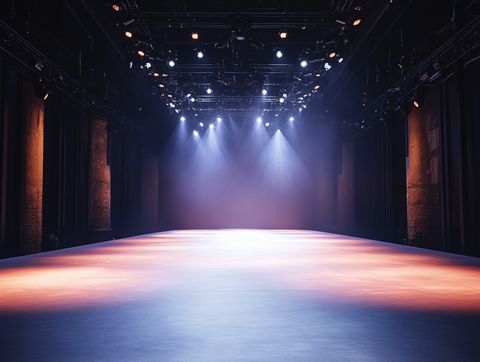
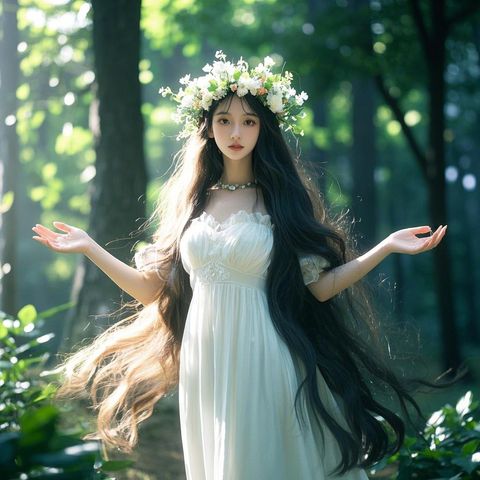
Prompt: On the stage @element3, a girl wearing fashionable clothes @element1 and a crystal crown @element2 calmly gazes at the camera.

Elements
Result

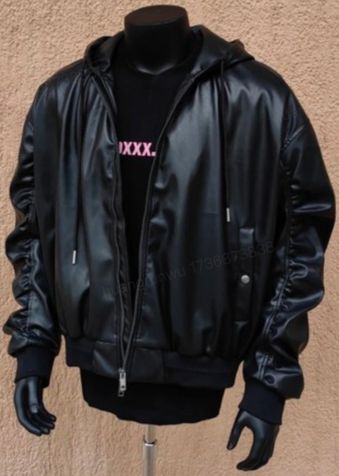
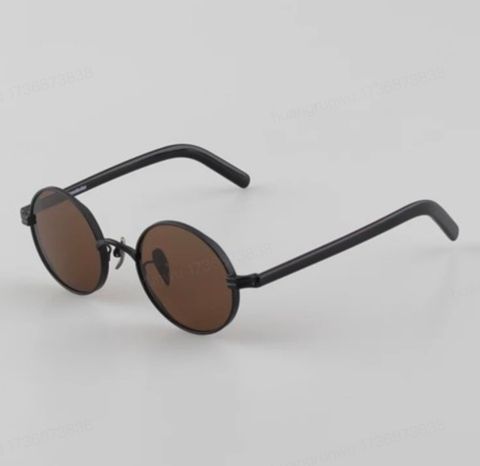
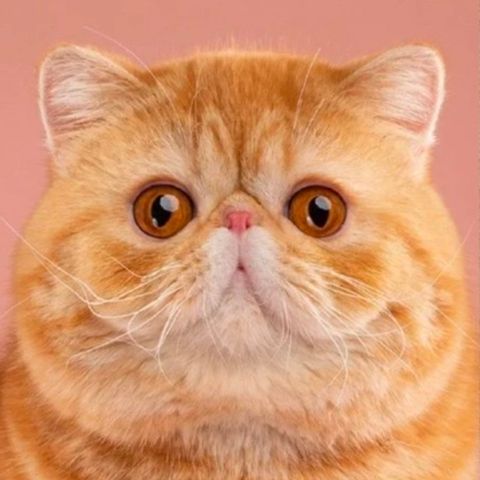
Promt: A standing cat @element1 character wearing a jacket @element2 and sunglasses @elemen3 strikes a pose towards the camera on the stage.

Elements
Results

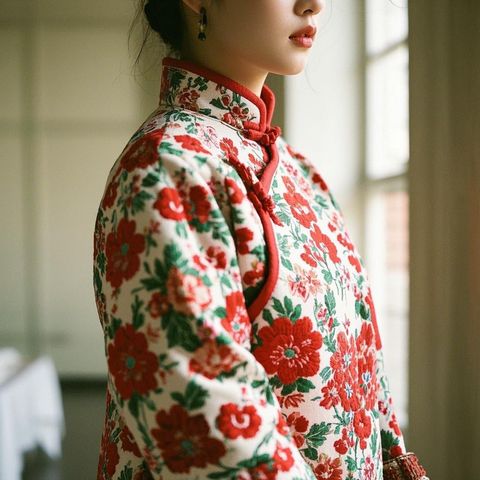
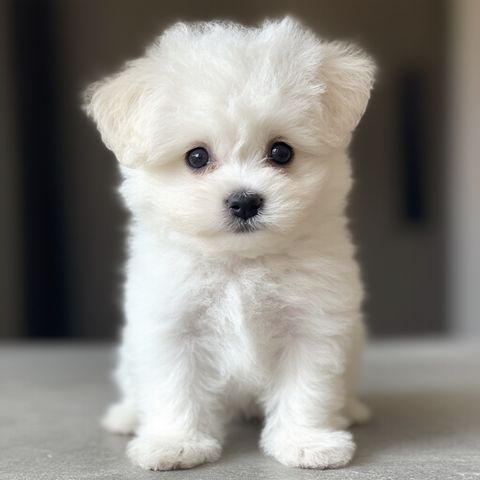
Prompt: A white Bichon Frisé @element1 wearing a red floral Chinese-style winter @element2 coat licks its paw.

Elements
Result

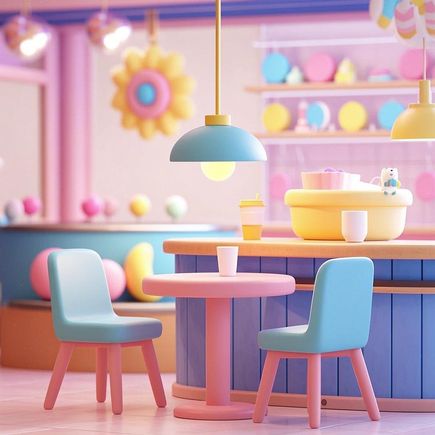
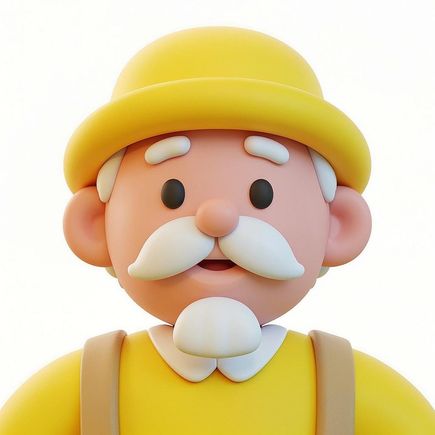
Prompt: In a café @element1, a cartoon-style elderly man @element2 lifts a cup @element3 to drink coffee.

Using Elements for interactions between characters

Upload images of multiple subjects (people, animals, objects, etc), and describe their interactions.

Elements

Result

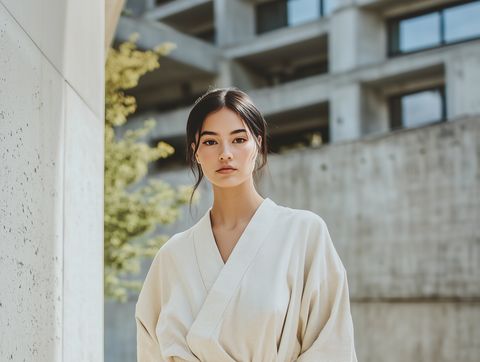
Prompt: Two girls @element1 @element2 hug each other.

Elements
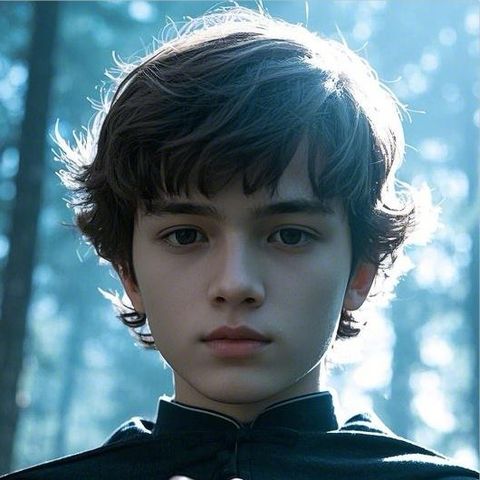
Result

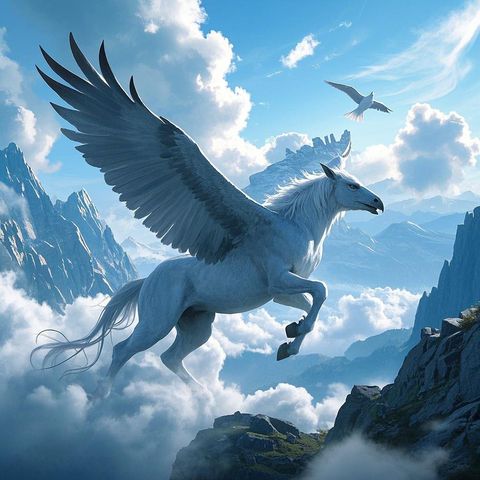
Prompt: A boy @element# rides a Pegasus @element2 , soaring through the air, in a magical style.

Elements
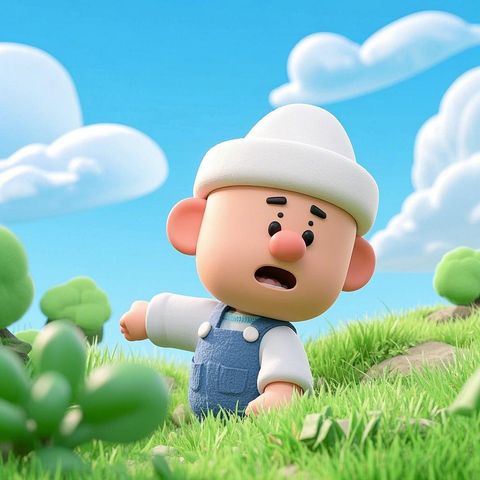
Result

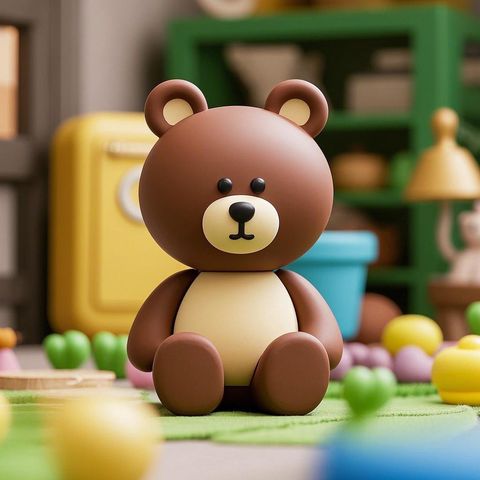
Prompt: A cartoon character @element1 wearing a white hat, and a cartoon-style bear @element2 , sitting side by side, wave and nudge at each other.

🧩 Elements

Elementsを試す