Elements — Technical Guide
Išmokykite AI atpažinti jūsų personažą, objektą ar kostiumą visam laikui — įkelkite nuorodų nuotraukas vieną kartą, tada nurodykite jas pagal pavadinimą bet kuriame Kling vaizdo ar vaizdų generavime
Išmokykite AI atpažinti jūsų personažą, objektą ar kostiumą visam laikui — įkelkite nuorodų nuotraukas vieną kartą, tada nurodykite jas pagal pavadinimą bet kuriame Kling vaizdo ar vaizdų generavime
Elementai yra jūsų personažų ir objektų biblioteka. Vietoj to, kad kiekvieną kartą įkeltumėte tas pačias nuorodų nuotraukas, jūs išmokote AI vieną kartą — įkelkite kelias nuotraukas asmens, objekto, kostiumo ar scenos — ir AI išmoksta, kaip tai atrodo. Nuo tos akimirkos jūs tiesiog nurodote elementą pagal pavadinimą savo užklausose, o AI žino, ką generuoti.
Yra dvi mokymo režimai. Vaizdo nuoroda leidžia jums įkelti 1 priekinę nuotrauką ir iki 3 papildomų kampų — AI išmoksta vizualinį vaizdą ir gali jį atkurti bet kurioje generacijoje. Vaizdo nuoroda leidžia jums įkelti trumpą vaizdo įrašą (3–8 sekundės) — AI išmoksta tiek išvaizdą, tiek judėjimo stilių, ir net gali automatiškai išgauti balsą, jei asmuo kalba įraše.
Kai elementas sukurtas, jis veikia visur Kling ekosistemoje. Omni Image jį nurodykite kaip <<<element_name>>> savo šablono užklausoje. Kling Video nurodykite jį taip pat. Elementas turi nuoseklų identitetą visose generacijose — tas pats veidas, tos pačios proporcijos, tos pačios išskirtinės savybės — be to, kad jums vėl reikėtų įkelti nuotraukas.
Žymės leidžia jums organizuoti savo biblioteką pagal tipą: Personažas, Gyvūnas, Daiktas, Kostiumas, Scena arba Efektas. Elementų kūrimas yra nemokamas — mokesčiai taikomi tik tada, kai naudojate juos vaizdų ar vaizdo generavime.
✦ Best Results Tips
👤
Aiškus priekinis nuotrauka yra būtina
Pirma nuotrauka turi būti švari, gerai apšviesta priekinė nuotrauka — veidas žiūri tiesiai į kamerą be kliūčių. Tai yra pagrindinė nuoroda, kurią AI naudoja identitetui išmokti. Viskas kitas remiasi šia nuotrauka.
📐
Pridėkite kelis kampus
Įkelkite iki 3 papildomų nuotraukų iš skirtingų kampų — šoninis profilis, trijų ketvirčių vaizdas, šiek tiek virš arba žemiau. Daugiau kampų suteikia AI išsamesnį veido ir kūno supratimą iš kiekvienos pusės.
🎬
Vaizdo nuoroda judėjimui ir balsui
Jei norite, kad AI išmoktų, kaip personažas juda ir skamba, naudokite vaizdo nuorodos režimą. Įkelkite trumpą 3–8 sekundžių klipą, kuriame asmuo kalba arba juda — AI išgauna išvaizdą, judėjimo stilių ir balsą kartu.
🏷️
Naudokite aprašomuosius pavadinimus
Suteikite savo elementui aiškų, įsimintiną pavadinimą — Maeva, Raudona Suknelė, Paplūdimio Scena — ne element_001. Jūs šį pavadinimą rašysite užklausose kitose priemonėse, todėl jis turėtų būti lengvai įsimenamas ir rašomas.
♻️
Sukurkite vieną kartą, naudokite visur
Elementas veikia Omni Image ir Kling Video. Išmokykite savo personažą kaip elementą ir jums niekada nereikės vėl įkelti nuorodų nuotraukų — tiesiog rašykite <<<element_name>>> bet kurioje užklausoje, kad juos įtrauktumėte.
🆓
Nemokamai kurti
Elementų kūrimas ir valdymas nieko nekainuoja. Jūs mokate kreditais tik tada, kai generuojate vaizdus ar vaizdo įrašus, kurie naudoja elementą. Sukurkite visą savo personažų biblioteką nieko neišleidę.
Elements — Available Models
custom-elements
Creates reusable character/object reference assets.
📥
You Give
📝Text Prompt
👤Face Reference Image
👕Clothing Reference (optional)
🎨Style Reference (optional)
🎬Video Reference (optional)
🔊Voice / Sound (optional)
Element types
Character
Animal
Item
Costume
Scene
Effect
📌
Image reference (1 frontal + 3 angles)
Reference mode
📌
Video reference (3-8s, 1080p)
Reference mode
Features
Voice auto-extraction from video
Persistent library
Cross-tool references
💰 Elements — Pricing
Estimated cost
—
Failed jobs are automatically refunded
Take full control of your video's composition. This guide shows how to use the "Elements" feature with 1-4 images for character consistency and multi-subject interactions.
The Elements feature is now available with the Kling AI 1.6 model for Image to Video generation! Upload 1–4 images, select the subjects (people, animals, objects, or scenes) in the images as elements, and describe their actions and interactions. A video will be created based on the elements and the prompt.
Compared with Text to Video generation, the Elements feature allows more creative control so that you can decide the elements to keep consistent in the video. Compared with the Frames feature, the Elements feature is more flexible with more references than the content in the Start / End Frame. With Elements, you can explore more possibilities by putting a subject in different scenes, or having multiple subjects interact with each other!
Using Elements for character consistency
Upload one or multiple images as elements of a subject (person, character, animal, object, etc.), and a video will be created based on the image references with a consistent style. This can be particularly useful to achieve consistent looks on a character across different shots.
In addition, you can also set scenes or clothing as elements, and specify the actions in the prompt, to make the subject look and move in a certain way, in a certain scene. This allows for more creative control in your work.
Elements
Result
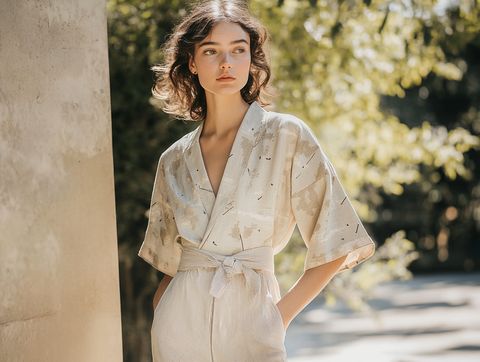
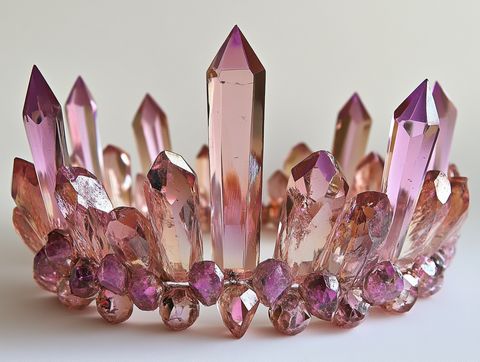
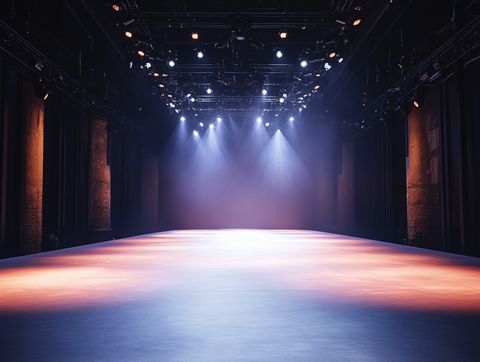
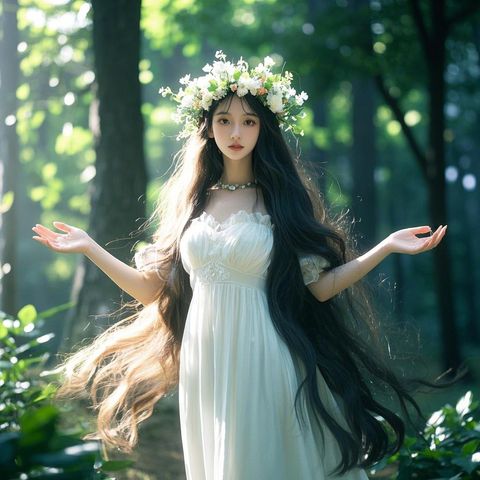
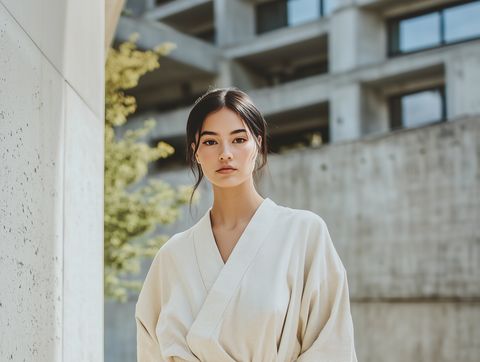
Prompt: On the stage @element3, a girl wearing fashionable clothes @element1 and a crystal crown @element2 calmly gazes at the camera.
Elements
Result
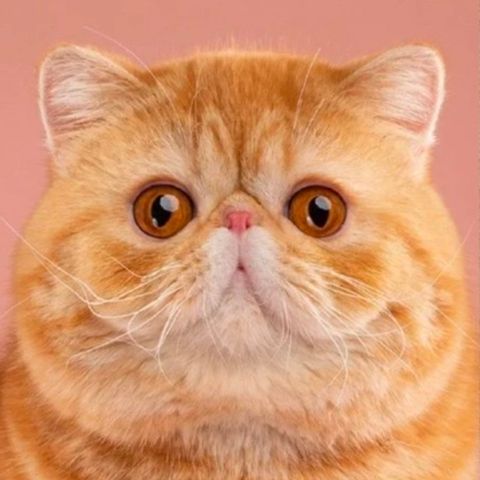
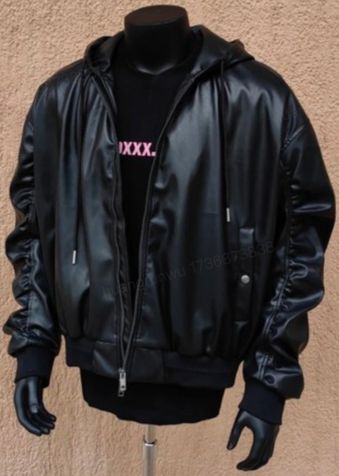
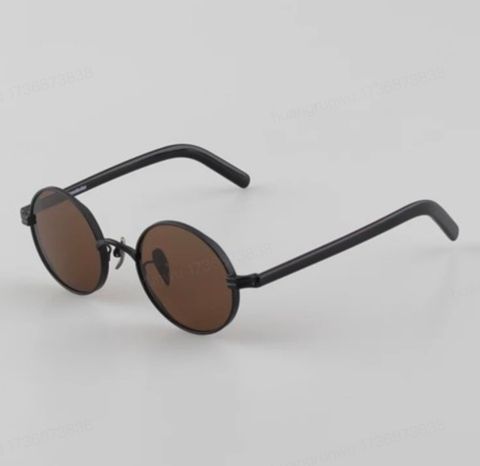
Promt: A standing cat @element1 character wearing a jacket @element2 and sunglasses @elemen3 strikes a pose towards the camera on the stage.
Elements
Results
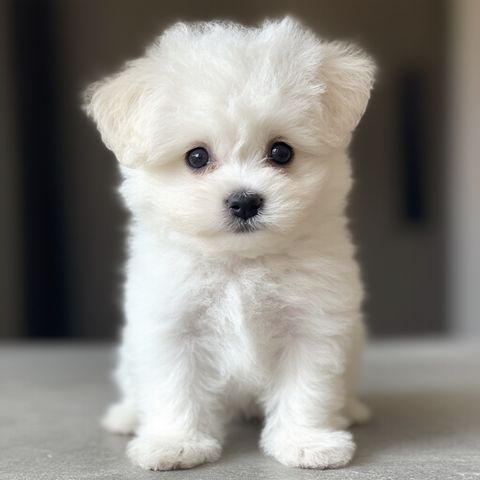
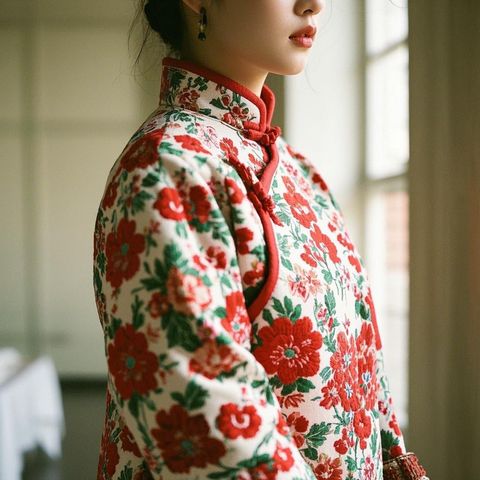
Prompt: A white Bichon Frisé @element1 wearing a red floral Chinese-style winter @element2 coat licks its paw.
Elements
Result
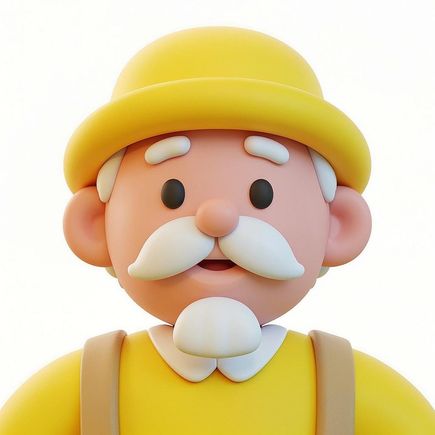
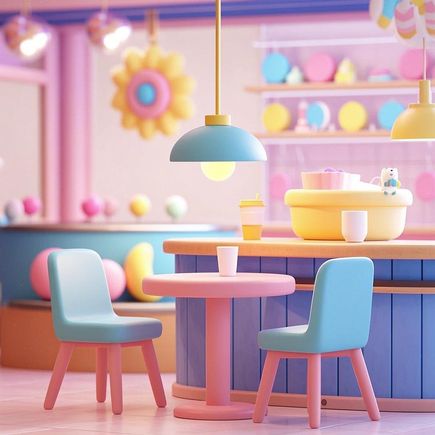
Prompt: In a café @element1, a cartoon-style elderly man @element2 lifts a cup @element3 to drink coffee.
Using Elements for interactions between characters
Upload images of multiple subjects (people, animals, objects, etc), and describe their interactions.
Elements
Result
Prompt: Two girls @element1 @element2 hug each other.
Elements
Result
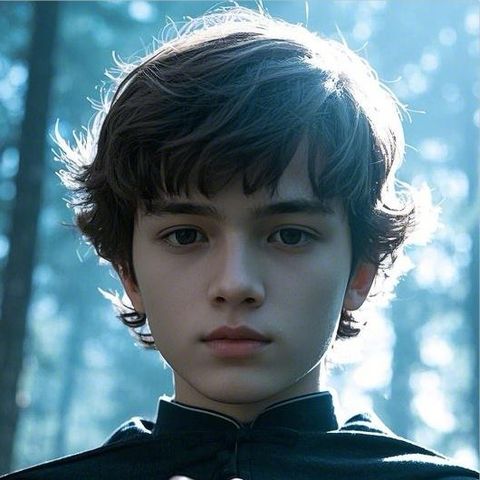
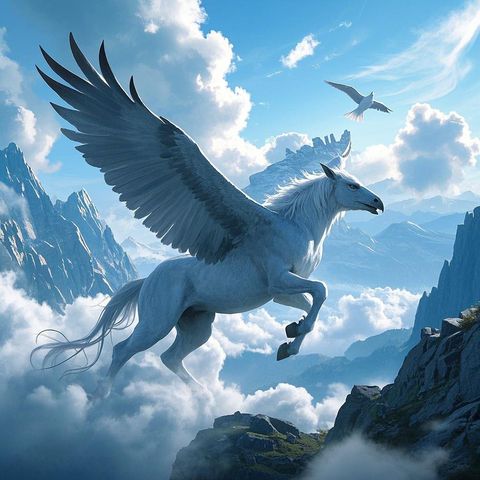
Prompt: A boy @element# rides a Pegasus @element2 , soaring through the air, in a magical style.
Elements
Result
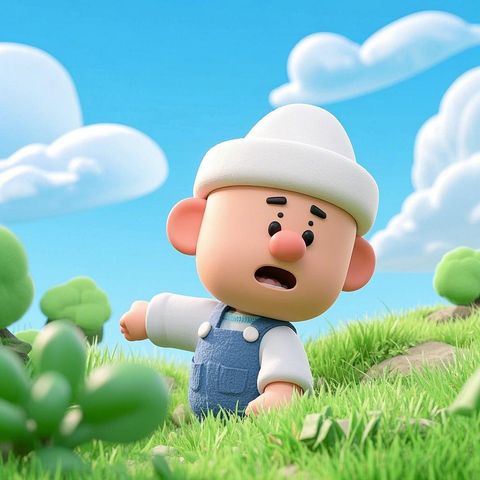
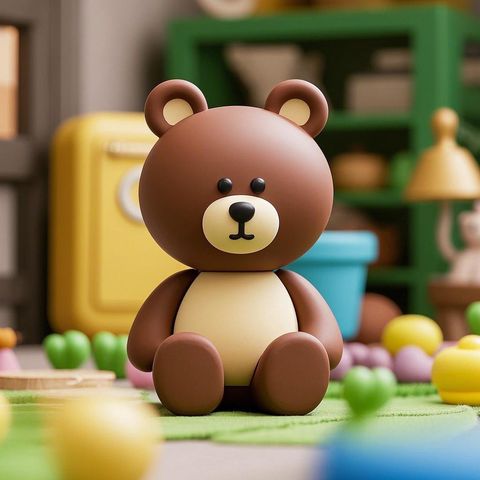
Prompt: A cartoon character @element1 wearing a white hat, and a cartoon-style bear @element2 , sitting side by side, wave and nudge at each other.