Elements — Technical Guide
Entrena a la IA para reconocer tu personaje, objeto o disfraz de forma permanente: sube fotos de referencia una vez y luego refiérete a ellas por nombre en cualquier video o generación de imágenes de Kling
Entrena a la IA para reconocer tu personaje, objeto o disfraz de forma permanente: sube fotos de referencia una vez y luego refiérete a ellas por nombre en cualquier video o generación de imágenes de Kling
Elements es tu biblioteca de personajes y objetos. En lugar de subir las mismas fotos de referencia cada vez que generas contenido, entrenas a la IA una vez: sube algunas fotos de una persona, objeto, disfraz o escena, y la IA aprende cómo se ve. A partir de ese momento, solo refieres el elemento por nombre en tus indicaciones y la IA sabe exactamente qué generar.
Hay dos modos de entrenamiento disponibles. Image Reference te permite subir 1 foto frontal más hasta 3 ángulos adicionales: la IA aprende la apariencia visual y puede reproducirla en cualquier generación. Video Reference te permite subir un breve clip de video (de 3 a 8 segundos): la IA aprende tanto la apariencia como el estilo de movimiento, e incluso puede extraer la voz automáticamente si la persona habla en el clip.
Una vez que se crea un elemento, funciona en todo el ecosistema de Kling. En Omni Image, refiérete a él como <<<element_name>>> en tu indicación de plantilla. En Kling Video, refiérete de la misma manera. El elemento mantiene una identidad consistente en todas las generaciones: mismo rostro, mismas proporciones, mismas características distintivas, sin que necesites subir fotos nuevamente.
Las etiquetas te permiten organizar tu biblioteca por tipo: Personaje, Animal, Objeto, Disfraz, Escena o Efecto. Crear elementos es gratis: solo se aplican costos cuando los usas en generación de imágenes o videos.
✦ Best Results Tips
👤
Foto Frontal Clara es Esencial
La primera imagen debe ser una toma frontal limpia y bien iluminada: rostro mirando directamente a la cámara sin obstrucciones. Esta es la referencia principal que la IA utiliza para aprender la identidad. Todo lo demás se basa en esta imagen.
📐
Agrega Múltiples Ángulos
Sube hasta 3 fotos adicionales desde diferentes ángulos: perfil lateral, vista de tres cuartos, ligeramente por encima o por debajo. Más ángulos le dan a la IA una comprensión más completa del rostro y el cuerpo desde cada dirección.
🎬
Referencia de Video para Movimiento y Voz
Si deseas que la IA aprenda cómo se mueve y suena un personaje, utiliza el modo Video Reference. Sube un breve clip de 3 a 8 segundos de la persona hablando o moviéndose: la IA extrae la apariencia, el estilo de movimiento y la voz juntos.
🏷️
Usa Nombres Descriptivos
Dale a tu elemento un nombre claro y memorable: Maeva, Vestido Rojo, Escena de Playa, no element_001. Escribirás este nombre en indicaciones a través de otras herramientas, así que debe ser fácil de recordar y escribir.
♻️
Crea Una Vez, Usa en Todas Partes
Un elemento funciona en Omni Image y Kling Video. Entrena tu personaje como un elemento y nunca necesitarás volver a subir fotos de referencia: solo escribe <<<element_name>>> en cualquier indicación para incluirlas.
🆓
Gratis para Crear
Crear y gestionar elementos no cuesta nada. Solo pagas créditos cuando generas imágenes o videos que utilizan el elemento. Construye toda tu biblioteca de personajes sin gastar nada.
Elements — Available Models
custom-elements
Creates reusable character/object reference assets.
📥
You Give
📝Text Prompt
👤Face Reference Image
👕Clothing Reference (optional)
🎨Style Reference (optional)
🎬Video Reference (optional)
🔊Voice / Sound (optional)
Element types
Character
Animal
Item
Costume
Scene
Effect
📌
Image reference (1 frontal + 3 angles)
Reference mode
📌
Video reference (3-8s, 1080p)
Reference mode
Features
Voice auto-extraction from video
Persistent library
Cross-tool references
💰 Elements — Pricing
Estimated cost
—
Failed jobs are automatically refunded
Take full control of your video's composition. This guide shows how to use the "Elements" feature with 1-4 images for character consistency and multi-subject interactions.
The Elements feature is now available with the Kling AI 1.6 model for Image to Video generation! Upload 1–4 images, select the subjects (people, animals, objects, or scenes) in the images as elements, and describe their actions and interactions. A video will be created based on the elements and the prompt.
Compared with Text to Video generation, the Elements feature allows more creative control so that you can decide the elements to keep consistent in the video. Compared with the Frames feature, the Elements feature is more flexible with more references than the content in the Start / End Frame. With Elements, you can explore more possibilities by putting a subject in different scenes, or having multiple subjects interact with each other!
Using Elements for character consistency
Upload one or multiple images as elements of a subject (person, character, animal, object, etc.), and a video will be created based on the image references with a consistent style. This can be particularly useful to achieve consistent looks on a character across different shots.
In addition, you can also set scenes or clothing as elements, and specify the actions in the prompt, to make the subject look and move in a certain way, in a certain scene. This allows for more creative control in your work.
Elements
Result
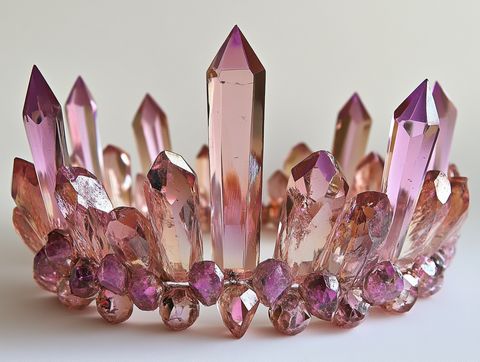
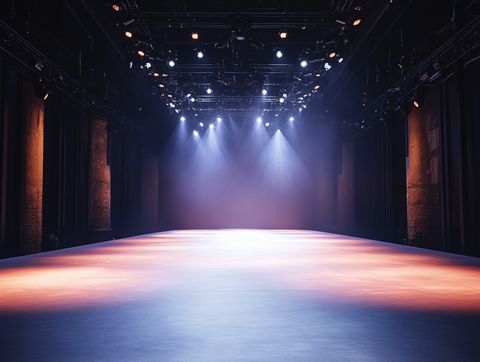
Prompt: On the stage @element3, a girl wearing fashionable clothes @element1 and a crystal crown @element2 calmly gazes at the camera.
Elements
Result
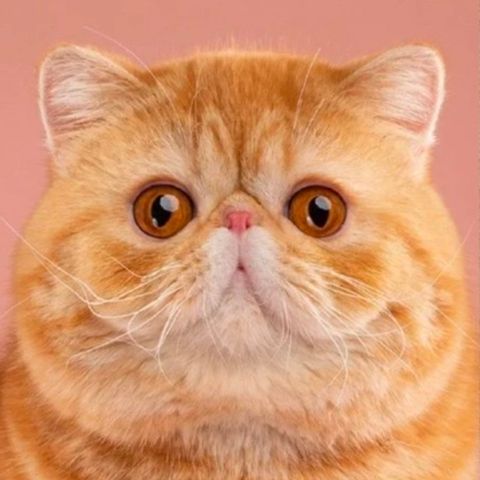
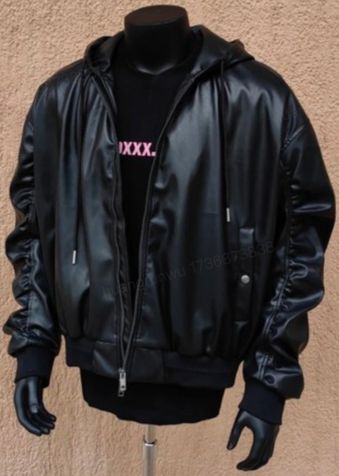
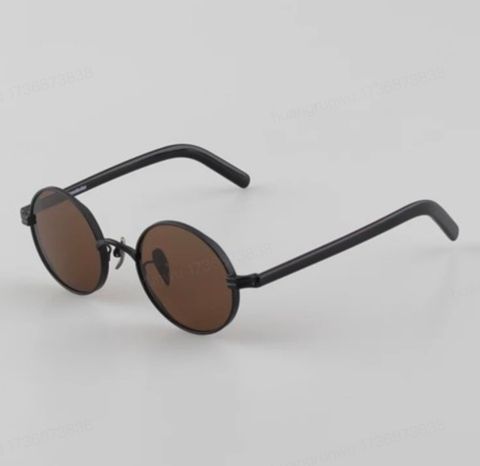
Promt: A standing cat @element1 character wearing a jacket @element2 and sunglasses @elemen3 strikes a pose towards the camera on the stage.
Elements
Results
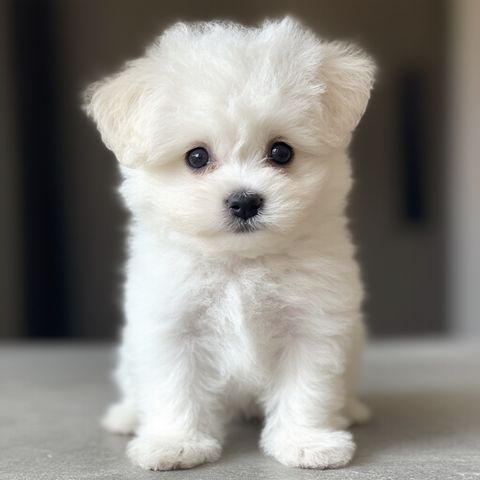
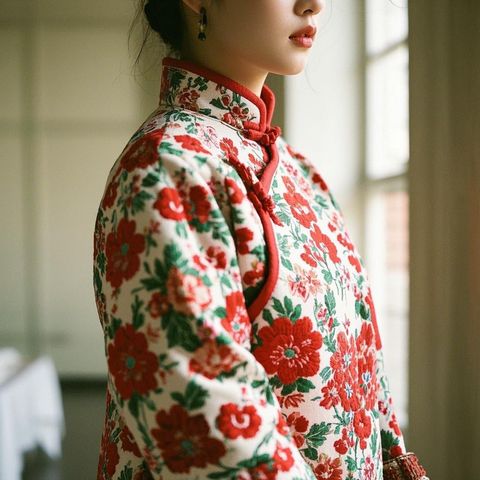
Prompt: A white Bichon Frisé @element1 wearing a red floral Chinese-style winter @element2 coat licks its paw.
Elements
Result
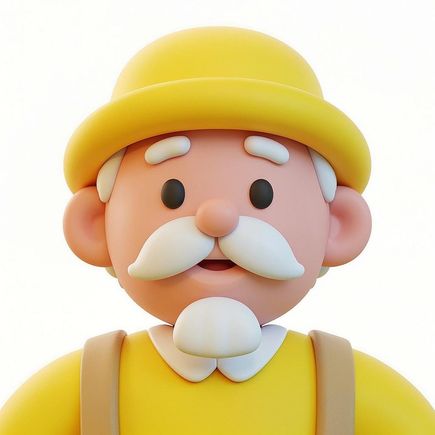
Prompt: In a café @element1, a cartoon-style elderly man @element2 lifts a cup @element3 to drink coffee.
Using Elements for interactions between characters
Upload images of multiple subjects (people, animals, objects, etc), and describe their interactions.
Elements
Result
Prompt: Two girls @element1 @element2 hug each other.
Elements
Result
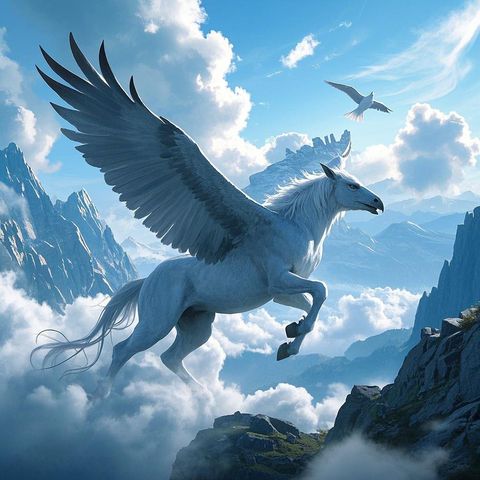
Prompt: A boy @element# rides a Pegasus @element2 , soaring through the air, in a magical style.
Elements
Result
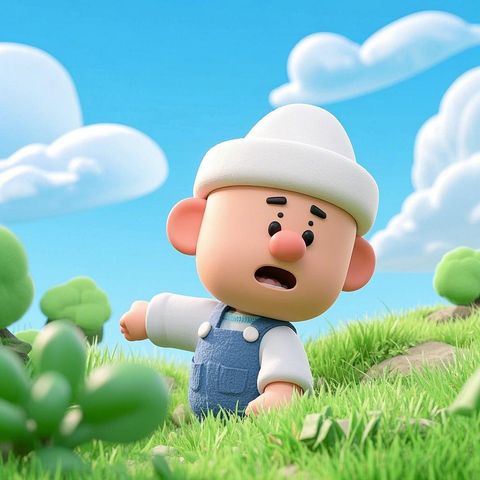
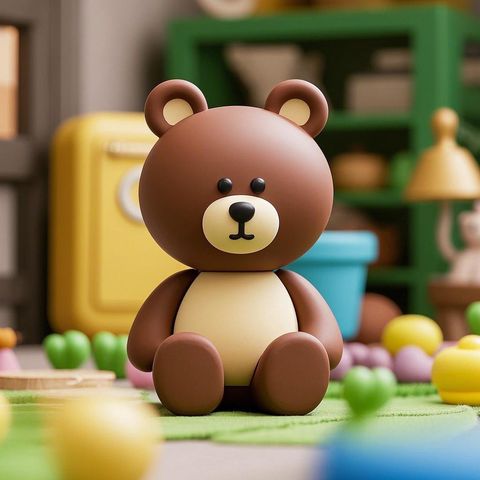
Prompt: A cartoon character @element1 wearing a white hat, and a cartoon-style bear @element2 , sitting side by side, wave and nudge at each other.